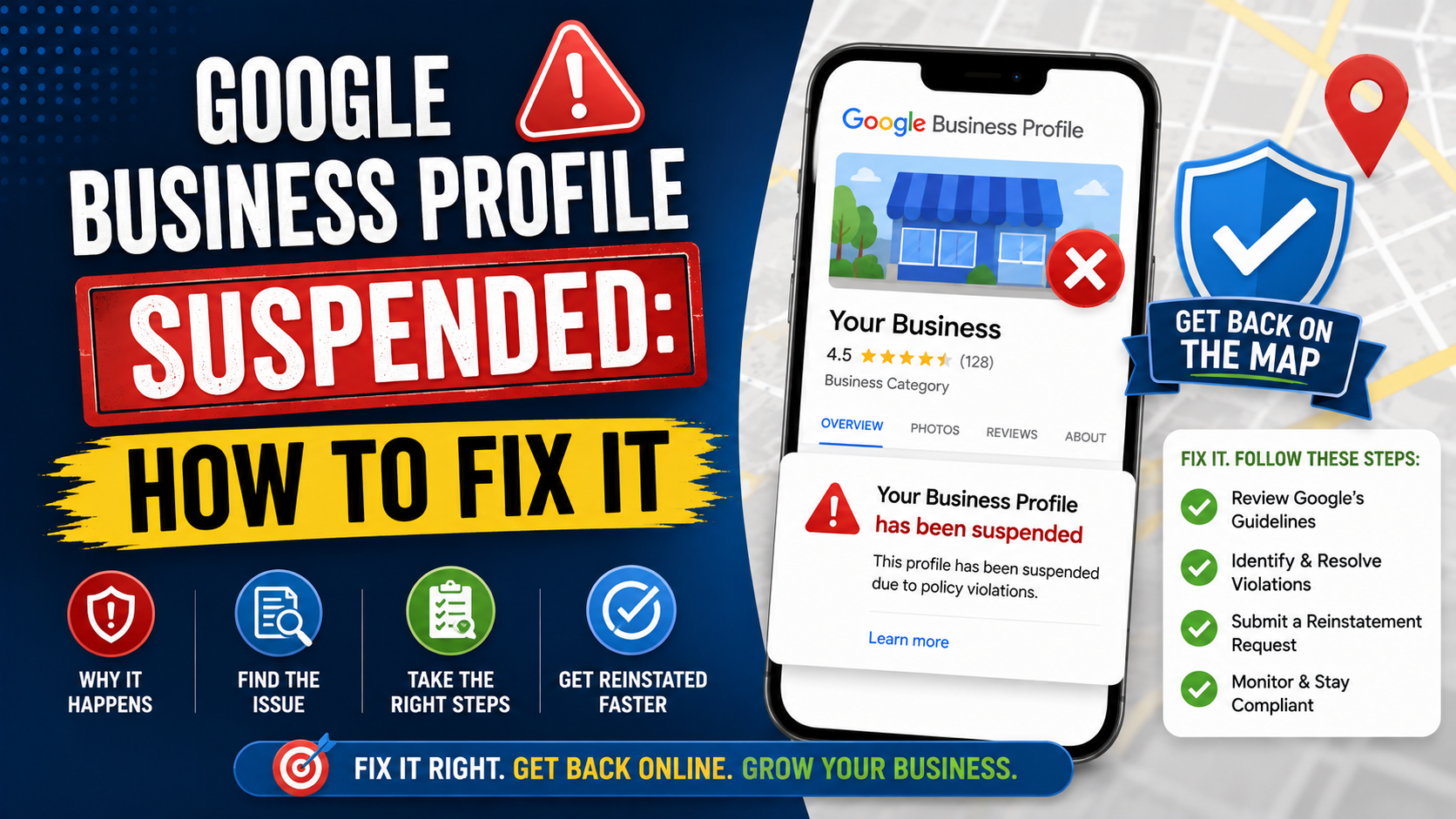
Few local SEO problems create panic as quickly as opening Google and discovering that your Business Profile has been suspended.
Yesterday, the business was appearing on Maps.
Customers could see the reviews.
The phone was ringing.
Today, the profile is restricted or missing, and there is a message telling you that Google has taken action.
The natural reaction is to start changing everything.
Change the business name.
Create another listing.
Submit several support requests.
Ask three different people to appeal.
That is usually where a manageable problem turns into a bigger one.
When a Google Business Profile is suspended, the safest approach is much less dramatic:
Stop. Find the likely policy problem. Fix it. Gather proof. Then appeal once with accurate evidence.
Google currently provides a dedicated Business Profile appeals tool. It can show the affected profile, the moderation reason, and a link to the policy involved. Google also specifically tells businesses not to create another profile for the same business while an appeal is being reviewed.
That gives us a much clearer recovery process than the old advice you may still find online.
Let’s walk through it.
First, Don’t Create a New Google Business Profile
This is probably the most important thing to avoid.
A business owner sees the suspension and thinks:
“Fine. I’ll just make another listing.”
Don’t.
Google explicitly says not to create a new Business Profile for the same business while your appeal is under review.
You can end up with:
- Duplicate profiles
- Ownership confusion
- More verification problems
- Reviews attached to different listings
- Another policy issue to clean up
Google generally allows only one profile for each individual business location unless the businesses are genuinely separate and meet its eligibility requirements. Multiple profiles for the same business may be treated as duplicates.
Your goal is usually to repair the original legitimate listing.
Not replace it.
Why Does Google Suspend Business Profiles?
There is no single reason.
Google can restrict profiles that do not comply with its Business Profile policies, and account-level restrictions can also affect every profile managed by a particular account.
In practice, the first things I would inspect are:
- Business name
- Address
- Storefront eligibility
- Service-area setup
- Virtual office usage
- Duplicate listings
- Business eligibility
- Ownership and account issues
Let’s go through the common ones.
1. Keyword Stuffing the Business Name
This is one of the first fields I check.
Suppose the real business is called:
Green Oak Landscaping
But the Google profile says:
Green Oak Landscaping – Best Landscaper Patio Contractor Burlington
That may look clever from an SEO perspective.
It is not compliant if that is not the real-world business name.
Google says your profile name should match how the business is consistently represented in the real world, including signage, branding, stationery, and the website. Adding unnecessary information to the name is not permitted and can lead to suspension.
So use:
Green Oak Landscaping
Then place things like:
- Patio installation
- Landscaping
- Burlington
- Paving contractor
in the appropriate categories, services, service areas, and website content.
The business-name field is not a keyword box.
2. Using a Virtual Office as a Real Location
This causes trouble for businesses trying to rank in additional cities.
Imagine your real office is outside Toronto.
You rent a virtual address downtown and create:
ABC Roofing Toronto
The problem is that nobody from ABC Roofing actually works there.
Customers cannot walk in and meet your team.
Google’s current guidelines say that a physical postal address where the business does not actually operate, commonly called a virtual office, is not eligible as a Business Profile location.
Co-working offices are not automatic shortcuts either.
Google says a co-working location must meet requirements such as:
- Clear signage
- Receiving customers there
- Being staffed during opening hours by your business’s staff
if you want to represent it as a customer-facing office.
If the only thing you are renting is an address, that is a major problem to fix before appealing.
3. Using a P.O. Box or Remote Mailbox
A mailbox does not become a storefront because it has a street address.
Google’s eligibility rules specifically exclude businesses whose profile address is a P.O. box or mailbox at a remote location.
Use the business’s legitimate operating location.
If customers do not visit that location, you may need a service-area setup instead.
4. Displaying a Home Address for a Service-Area Business
This is especially common with:
- Plumbers
- Electricians
- Landscapers
- Cleaners
- Roofers
- Pest control companies
- Mobile repair services
Suppose you run the company from home.
Your trucks leave from the property every morning.
But customers never visit you there.
Google says that if you don’t serve customers at the business address, you should hide that address and display the service area instead.
For example, if you are a plumber operating from your residential address, your setup may still use that legitimate base location internally, but the residential address should not be publicly presented as a customer-facing storefront.
Your profile can instead specify the cities, postal codes, or other supported areas you genuinely serve.
Google currently allows up to 20 service areas and recommends that the overall territory generally remain within about two hours of driving time from the business base, although some businesses can reasonably serve wider areas.
5. Creating Multiple Profiles for One Service-Area Business
A contractor might think:
“I serve five cities, so I’ll create five profiles.”
For example:
ABC Plumbing Burlington
ABC Plumbing Oakville
ABC Plumbing Hamilton
ABC Plumbing Milton
ABC Plumbing Mississauga
But there is only one office and one team.
That is a problem.
Google says a service-area business generally gets one profile for the area it serves. Separate profiles can be appropriate when genuinely separate locations exist with separate staff and separate service operations.
Serving another city does not mean you own another location there.
6. The Business Isn’t Actually Eligible
This is an uncomfortable possibility, but you need to consider it.
Google Business Profiles are designed for businesses that have real in-person contact with customers.
Google currently lists several examples of ineligible businesses, including:
- Online-only businesses
- Lead generation businesses
- Certain rental or for-sale properties
- Brands and organizations without eligible in-person customer interaction
For example, imagine a website called:
Best Dallas Roof Leads
It collects customer information and sells those leads to roofing contractors.
It does not actually send its own employees to perform roofing services.
Creating a Google Business Profile that makes it look like a roofing contractor would be a serious eligibility problem.
Likewise, an ecommerce business selling products nationally with no customer-facing location and no in-person service generally does not qualify simply because it has a registered office.
Before appealing, make sure the business itself qualifies.
7. Duplicate Profiles
Sometimes a duplicate is accidental.
Maybe an employee created a listing years ago.
Then an agency created another.
Then the owner verified a third.
Search Google Maps carefully.
Search:
Business name + city
Then search the address.
Then search the phone number.
Google says multiple profiles for the same business can mislead customers and violate its policies. If an existing verified profile already represents the business, the proper route may be ownership resolution or duplicate cleanup rather than creating another listing.
Do not delete things randomly either.
First understand which profile is:
- Verified
- Legitimate
- Review-rich
- Correct
- Currently suspended
Then clean up the duplicates carefully.
8. Account-Level Restrictions
This is different from one individual profile having a problem.
Google can restrict an account from Business Profile activity when it detects a pattern of policy violations.
If the account is restricted, profiles managed through that account can also be suspended, and the account restriction may need to be appealed first.
This is especially important for:
- Agencies
- Multi-location companies
- Users managing many listings
If ten unrelated profiles suddenly become restricted together, do not automatically assume all ten physical businesses developed address problems on the same day.
Check whether the Google account itself has been restricted.
Google says account-level appeals can be managed through the account appeal process, and after the account restriction is lifted, you may still need to appeal the affected Business Profile suspension.
Before Appealing, Fix the Profile
This is where people rush.
They receive the suspension email and immediately click Appeal.
I would not do that until I had reviewed the profile against Google’s guidelines.
Why appeal information that is still wrong?
Imagine the business name is:
Green Oak Landscaping
but the suspended listing still says:
Green Oak Landscaping Best Patio Contractor Burlington
Submitting proof that the company is registered as Green Oak Landscaping may actually highlight the inconsistency.
Fix the profile first where the interface allows you to do so.
I would check:
Business Name
Does it match genuine branding?
Address
Is it a real business operating location?
Address Visibility
If customers don’t visit, should the address be hidden?
Service Area
Is it realistic?
Categories
Do they accurately describe the business?
Phone
Does it connect to the real business?
Website
Does the site represent the same company?
Hours
Are they real?
Duplicate Profiles
Does another profile already exist?
Eligibility
Does the business genuinely interact with customers in person?
Once those basics make sense, move to the appeal.
Use Google’s Business Profile Appeals Tool
Google now directs suspended or disabled businesses through its Business Profile appeals tool.
When you open it while signed into the Google account associated with the listing, you can select the affected Business Profile.
Google says the tool can show:
- The restricted profile
- The moderation reason
- The relevant policy
- Appeal eligibility
- Current appeal status
Read the policy shown.
Do not skip it.
If Google tells you the issue relates to business representation, compare your profile against the representation guidelines.
If the issue relates to the account, address that level first.
Understanding the reason makes your evidence much stronger.
Gather Your Evidence Before Opening the Evidence Form
This is another important detail that many older tutorials miss.
Google says that once you open the evidence form, you have 60 minutes to submit it if you want the evidence attached to your appeal.
So prepare first.
Useful evidence can include:
- Official business registration
- Business license
- Tax certificates
- Utility bills
- Phone bills
- Water bills
- Electricity bills
- Internet bills
Google recommends that the business name and address on submitted documents match the profile being appealed.
I would create one folder before starting.
Name the files clearly:
business-registration.pdf
utility-bill.pdf
storefront-signage.jpg
business-license.pdf
Then check every document.
Does the company name match?
Does the address match?
Is it current?
Can somebody reviewing it understand what it proves?
Do that preparation before starting the evidence timer.
Storefront Businesses Should Be Able to Prove the Storefront Exists
If your profile displays a business address, Google expects that location to genuinely represent the business.
Its guidelines say businesses showing an address should maintain permanent fixed signage with the business name.
If Google requests re-verification, video verification may require things such as:
- Street signs
- Building number
- Nearby businesses
- Storefront signage
- Interior business areas
- Evidence that you control the location
Google’s verification documentation says a business may be asked to demonstrate both the location and proof of management, for example by unlocking the business, accessing staff-only areas, showing equipment, or using a point-of-sale system.
That means a legitimate storefront should look like one in the real world.
Not only on Google Maps.
Service-Area Businesses Need Different Proof
A plumber working from home will not have a customer-facing sign over the garage.
That does not automatically make the business fake.
If Google requests video verification, service businesses may instead show things such as:
- Professional tools
- Branded equipment
- Work vehicles
- Business documents
- Nearby street identifiers
- Evidence that the operator manages the business
Google’s current video verification instructions explicitly account for service-area businesses and home-based operations.
Prepare evidence that makes sense for the business model.
Don’t try to make an SAB look like a retail store.
Submit One Clear Appeal
Once the profile complies and your evidence is prepared, submit the appeal.
Keep your explanation simple.
You do not need to write a legal argument.
Something like this is much easier to review:
“Green Oak Landscaping is an eligible service-area landscaping business operating from the address shown in the attached registration and utility bill. Customers are served at their properties, so we have hidden our residential business address and updated the service area to accurately represent where we work. The profile name now matches our registered and real-world business name.”
That explains:
- What the business is
- Why it qualifies
- What was corrected
- What the documents prove
Compare that with:
“PLEASE RESTORE MY PROFILE IMMEDIATELY. WE HAVE DONE NOTHING WRONG. GOOGLE IS DESTROYING MY BUSINESS.”
The frustration may be genuine.
But it does not help the reviewer understand eligibility.
Facts are more useful.
Don’t Submit Multiple Appeals While Waiting
This is another current Google instruction worth following.
Google says not to submit multiple appeals for the same issue before receiving a decision.
Submitting more forms does not necessarily make the case move faster.
It may simply create duplicate requests.
Use the appeals tool to check the status.
Google currently shows statuses such as:
- Submitted
- Approved
- Not Approved
- Can’t be appealed
- Eligible for appeal
Follow the process already in progress.
What If Your Appeal Is Denied?
A denial does not always mean the story is over.
Google says an additional review may be available after a reinstatement appeal has been denied.
That is the time to provide new evidence that was not included in the original appeal.
Before requesting another review, ask:
What did my original evidence fail to prove?
For example:
Maybe you submitted a registration document but nothing proving you actually operate from the location.
Now you might provide:
- Utility bill
- Permanent signage
- Business license
- Branded vehicle
- Business equipment
- Better location evidence
Do not simply send the exact same appeal again and expect a different answer.
Improve the evidence.
What If Google Requests Verification Again?
Reinstatement and verification are related but not identical.
Google may ask a business to verify or re-verify its information.
Google determines which verification methods are available; businesses cannot simply choose whichever method they prefer. Depending on the business, the available options can include methods such as phone, email, video recording, or live video.
If video verification appears, prepare before recording.
Google’s video instructions require an unedited recording that can demonstrate:
- Business location
- Business existence
- Management authority
For a storefront, that often means signage and access.
For an SAB, that can mean tools, vehicles, documents, and operating-location evidence.
Do not record a beautiful promotional video.
This is verification evidence.
Show proof.
What Not to Do During a Suspension
Don’t Create Another Profile
Google specifically warns against this while an appeal is under review.
Don’t Keyword Stuff the Name
Use your real-world business name.
Don’t Rent a Virtual Office to “Fix” the Location
If you do not really operate there, it does not solve the eligibility problem.
Don’t Invent Storefront Signage
Your physical setup should genuinely support the profile.
Don’t Add Fake Service Locations
One SAB does not need a profile for every city it serves.
Don’t Submit Fake Documents
Your evidence should prove the real business.
Don’t Submit Multiple Appeals at Once
Wait for the current appeal decision.
Don’t Delete the Suspended Profile in Panic
You may destroy useful ownership history or complicate the appeal process.
Google notes that appeals may be rejected when an associated profile is deleted before review.
A Practical Suspension Recovery Checklist
If I had a suspended GBP in front of me, I would work through it in this order.
Step 1: Identify the Affected Profile
Make sure you are signed into the correct Google account.
Step 2: Check the Appeals Tool
Look for the moderation reason and linked policy.
Step 3: Confirm Business Eligibility
Does the company genuinely meet customers in person or travel to them?
Step 4: Audit the Business Name
Remove SEO keywords that are not genuinely part of the business name.
Step 5: Audit the Address
Is it:
- Real?
- Accurate?
- Not a P.O. box?
- Not a virtual office?
- Properly staffed if presented as a storefront?
Step 6: Check SAB Settings
If customers don’t visit the location, hide the address and use accurate service areas.
Step 7: Search for Duplicates
Check Google Search and Maps for additional profiles.
Step 8: Check the Website
Does the website support the same business identity?
Step 9: Prepare Documentation
Gather registration, licenses, utility bills, and other relevant evidence.
Step 10: Submit the Appeal
Use the official appeals tool.
Step 11: Add Evidence Within 60 Minutes
If you open Google’s evidence form, complete it within the stated 60-minute window.
Step 12: Wait for the Decision
Do not create duplicate profiles or fire off multiple appeals.
Step 13: If Denied, Improve the Evidence
Use the additional-review option where available.
That is a much safer process than randomly changing fields until something happens.
A Realistic Example: The Home-Based Contractor
Imagine a fictional company:
Northside Paving
The owner works from home.
Customers never visit the house.
The profile currently says:
Northside Paving – Best Driveway & Patio Contractor
and publicly displays the residential address.
The company is suspended.
What would I fix?
First, change the name to:
Northside Paving
assuming that is the genuine real-world name.
Second, hide the residential address because customers are served at their own properties.
Third, add accurate service areas.
Fourth, make sure the website, phone number, registration, and other branding all support Northside Paving.
Then prepare:
- Business registration
- Utility bill
- Business license if applicable
- Photos of branded work vehicle or equipment if useful
Now the appeal tells one consistent story:
This is a real paving company.
This is its legitimate operating base.
It travels to customers.
The residential address is not being represented as a storefront.
The business name matches the real brand.
That is much stronger than appealing first and fixing things later.
Another Example: The Suspicious Downtown Office
Now imagine:
ABC Roofing
The actual team operates from a warehouse outside the city.
But the Business Profile uses a prestigious downtown address.
At the downtown location there is:
- No roofing staff
- No permanent signage
- No customers being served
- Only a mail reception service
That is not a documentation problem.
It is a setup problem.
Uploading more documents about the roofing company will not necessarily prove the downtown location is eligible.
The business needs to correct the profile to represent its real operations.
That distinction is important:
Evidence cannot make an ineligible setup eligible.
Fix the business representation first.
Then appeal.
How Long Does Reinstatement Take?
This is where I would avoid making promises.
There is no safe universal statement like:
“Your profile will be restored in three days.”
Appeal reviews can vary depending on:
- The problem
- Evidence
- Business type
- Account status
- Verification requirements
- Additional review
Google says it will review the appeal and notify the business by email when a decision is made, while the appeals tool can be used to monitor status.
What matters more is getting the first appeal right.
A rushed appeal that gets denied can easily make the process longer than spending another hour preparing proper evidence first.
How to Reduce the Risk of Another Suspension
Once reinstated, do not immediately return to aggressive optimization.
Keep the profile boringly accurate.
That is good.
Use:
Real business name
not an SEO version.
Use:
Real business location
not a ranking address.
Show:
A storefront address only when customers genuinely visit.
Use:
Accurate service areas
not every city in the state.
Maintain:
Real phone numbers, websites, hours, and categories.
And keep control of profile access.
Remove old agencies and former employees when they no longer need management permissions.
Google’s core guideline is surprisingly straightforward: represent the business as it is consistently represented in the real world and keep the address or service area accurate.
That is the standard I would keep coming back to.
Final Thoughts
A suspended Google Business Profile feels like an SEO emergency, especially when Maps calls are an important source of leads.
But the worst response is usually panic.
Don’t create another listing.
Don’t submit five appeals.
Don’t rent a virtual office.
Don’t stuff more keywords into the business name.
Don’t manufacture documents or storefront evidence.
Instead, work through the profile like an investigator.
Is the business eligible?
Is the name real?
Is the address legitimate?
Should that address be visible?
Does another profile already exist?
Does the website support the same business information?
Can you prove the business exists and operates the way the profile claims?
Google’s current appeal system actually makes this process more structured than it used to be. The appeals tool can show the affected profile, moderation reason, relevant policy, and appeal status. Google also allows supporting evidence such as registrations, licenses, tax documents, and utility bills, with a 60-minute submission window once the evidence form is opened.
Use that process carefully.
Fix the policy problem before arguing about the suspension.
Then give Google clean evidence showing that the business is real, eligible, and accurately represented.
There is no trick that guarantees reinstatement.
Google makes the final decision.
But a profile that genuinely follows the rules and an appeal supported by consistent evidence is a much stronger position than trying to outsmart the system.
And once the profile comes back, keep it accurate.
The safest Google Business Profile is usually the one that looks exactly like the real business behind it.