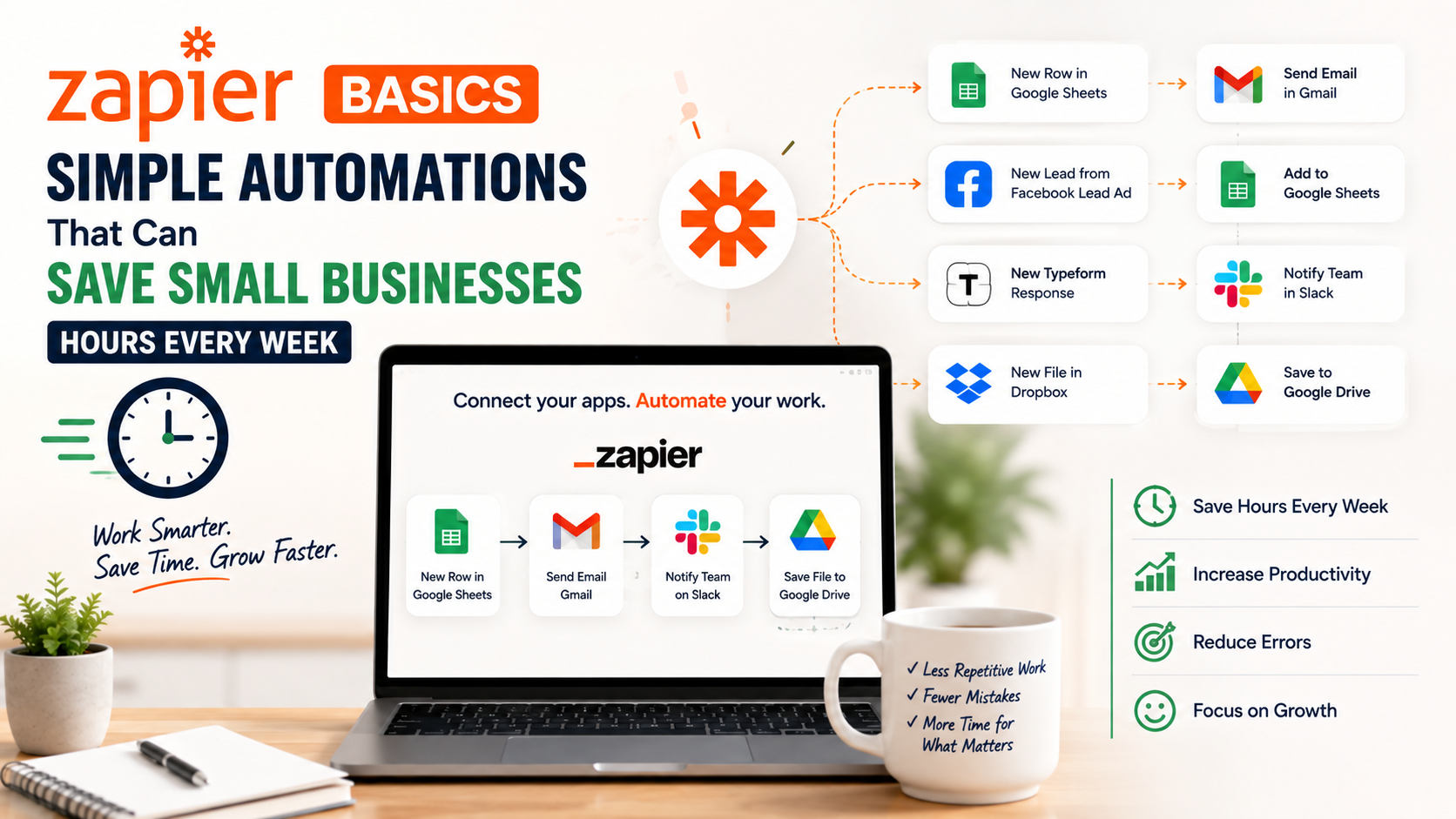
The first time I used automation for a small business, it was not because we wanted some advanced technology system.
We were simply tired of repeating the same tasks.
Every time someone filled out a contact form, someone had to:
- Copy the information into a spreadsheet
- Send a confirmation email
- Notify the team
- Create a follow-up task
None of these tasks were difficult.
But doing them dozens of times every week was wasting valuable time.
That is when I started looking into simple automation tools.
The interesting thing was that the solution was not a complicated custom software system.
It was a tool that connected the apps we were already using.
That tool was Zapier.
Over time, I have used automation platforms for different workflows, and I learned something important:
Small businesses usually do not need more software.
They need their existing software to work together.
A customer fills out a form.
A lead enters a CRM.
A payment is completed.
A task is created.
An email is sent.
These small actions happen every day, and automation can remove the manual work behind them.
Zapier is one of the easiest ways for beginners to start.
But like any tool, it works best when you understand what problems it should solve.
In this guide, I will explain Zapier basics, useful automations for small businesses, common mistakes, and how to get started without making things unnecessarily complicated.
What Is Zapier?
Zapier is an automation platform that connects different apps and allows them to work together.
Think of it as a digital assistant that moves information between tools.
For example:
Someone fills out a website form.
↓
Zapier sends the information to your CRM.
↓
A welcome email is sent automatically.
↓
A task is created for your sales team.
No manual copying.
No forgetting follow-ups.
Understanding How Zapier Works
Zapier is built around three simple concepts:
Trigger
The trigger is the event that starts the automation.
Examples:
- New website form submission
- New email received
- New customer added
- New purchase completed
Action
The action is what happens after the trigger.
Examples:
- Send an email
- Create a task
- Add information to a spreadsheet
- Send a notification
Zap
A Zap is the complete automation workflow.
Example:
Trigger:
New customer submits contact form
↓
Action:
Add customer to email list
↓
Action:
Notify sales team
That entire process is a Zap.
Why Small Businesses Should Care About Automation
Many business owners think automation is only for large companies.
That is actually where small businesses can benefit the most.
Large companies already have teams handling repetitive tasks.
Small businesses usually have the owner or a small team doing everything.
A few hours saved every week can make a big difference.
Real Example: A Small Service Business
Imagine a home renovation company.
A customer visits the website and fills out a quote request form.
Without automation:
Someone checks the form.
Someone copies the information.
Someone sends a response.
Someone remembers follow-up.
With Zapier:
Customer submits form.
↓
Lead is added to CRM.
↓
Customer receives confirmation email.
↓
Team receives notification.
↓
Follow-up task is created.
The customer gets a faster response, and the business looks more professional.
Best Zapier Automations for Small Businesses
1. Website Leads to CRM
This is one of the most useful automations.
Most businesses receive leads through:
- Website forms
- Facebook ads
- Landing pages
- Google Forms
Instead of manually moving data, automate it.
Example Workflow
Trigger:
New website form submission
Action:
Create contact in HubSpot
Action:
Send Slack notification
Action:
Create follow-up task
Useful Tools to Connect:
- HubSpot
- Google Forms
- Typeform
- WordPress
- Slack
2. Automatically Save Email Attachments
This is a simple but useful automation.
Many businesses receive documents through email:
- Invoices
- Contracts
- Customer files
- Reports
Instead of manually downloading and organizing them:
Create automation:
New Gmail attachment
↓
Save file to Google Drive
↓
Create folder automatically
Useful Tools:
- Gmail
- Google Drive
- Dropbox
3. Add New Customers to Email Lists
Email marketing works better when your customer database stays updated.
Example:
Customer purchases a product.
↓
Customer is added to email newsletter.
↓
Welcome email is sent.
Useful Tools:
- Mailchimp
- ConvertKit
- ActiveCampaign
- Shopify
4. Social Media Content Scheduling
Many businesses struggle with consistent posting.
Zapier can help connect content workflows.
Example:
New blog post published.
↓
Automatically share notification.
↓
Create social media draft.
Tools:
- WordPress
- Buffer
- Google Sheets
5. Create Tasks Automatically
One of my favorite uses of automation is reducing forgotten tasks.
Example:
New sales inquiry arrives.
↓
Create task in Asana.
↓
Assign to team member.
Tools:
- Asana
- Trello
- ClickUp
- Monday.com
6. Customer Review Requests
Reviews are important for local businesses.
You can automate reminders after completed services.
Example:
Customer status changes to completed.
↓
Send review request email.
Tools:
- CRM systems
- Email platforms
- Review management tools
How to Create Your First Zap
Getting started is easier than many people expect.
Step 1: Identify a Repetitive Task
Do not start by automating everything.
Look for tasks you repeat often.
Ask:
“What do I do every day that feels unnecessary?”
Examples:
- Copying data
- Sending reminders
- Creating tasks
- Updating spreadsheets
Step 2: Choose Your Trigger App
Decide what starts the workflow.
Example:
A new lead enters your website.
Your trigger:
“New form submission”
Step 3: Choose Your Action
Decide what should happen next.
Example:
Create contact in CRM.
Send notification.
Step 4: Test the Automation
Never activate a workflow without testing.
A small mistake can create bigger problems.
Check:
- Is information transferring correctly?
- Are emails sending properly?
- Are the right people notified?
My Biggest Zapier Mistake
When I first started using automation tools, I made a common mistake:
I tried to automate everything.
It sounds logical.
Why not automate every possible task?
The problem is that automation also adds complexity.
I created workflows that were difficult to maintain.
Some were solving problems that barely existed.
The lesson:
Automate boring, repetitive tasks first.
Do not automate something just because you can.
Common Zapier Mistakes Small Businesses Make
1. Creating Complicated Workflows Too Early
A simple automation is easier to manage.
Start with:
One trigger.
One or two actions.
Improve later.
2. Not Cleaning Data Before Automation
Automation moves information quickly.
But if your data is messy, it spreads the mess faster.
Before connecting systems, check:
- Duplicate contacts
- Incorrect information
- Old records
3. Forgetting Human Review
Not every process should become fully automatic.
Some situations need human judgment.
Example:
A customer complaint should probably be reviewed by a person.
4. Ignoring Automation Costs
Zapier offers different plans based on usage.
As your workflows grow, monitor:
- Number of tasks
- Frequency
- Complexity
Choose automations that provide real value.
Zapier Alternatives Worth Knowing
Zapier is popular, but it is not the only option.
Make
Make is popular for users who want more complex workflows.
It provides more visual control but may feel less beginner-friendly.
Microsoft Power Automate
Microsoft Power Automate works well for businesses already using Microsoft products.
IFTTT
IFTTT is simpler and often used for personal automation.
Simple Zapier Setup Ideas by Business Type
Local Service Business
Automate:
- Lead notifications
- Appointment reminders
- Review requests
Ecommerce Store
Automate:
- Customer emails
- Order notifications
- Inventory updates
Marketing Agency
Automate:
- Client reports
- Project tasks
- Lead management
Freelancer
Automate:
- Inquiry tracking
- Calendar scheduling
- Invoice reminders
Tools That Work Well With Zapier
Zapier becomes more useful when connected with common business tools.
Popular combinations include:
CRM
- HubSpot
- Salesforce
- Pipedrive
Communication
- Gmail
- Slack
- Microsoft Teams
Project Management
- Asana
- Trello
- ClickUp
Marketing
- Mailchimp
- ActiveCampaign
- ConvertKit
Forms
- Typeform
- Google Forms
- Jotform
My Recommended Starting Automations
If I was setting up Zapier for a small business today, I would start with:
Automation 1:
New website lead
↓
CRM entry
↓
Team notification
Automation 2:
New customer
↓
Welcome email
Automation 3:
Completed service
↓
Review request
Automation 4:
New task request
↓
Project management update
These simple workflows usually provide immediate value.
Final Thoughts
The best thing about Zapier is not that it can connect thousands of apps.
The real value is removing small frustrations from daily work.
A few minutes saved here and there becomes hours saved every month.
For small businesses, that time can be spent on things that actually matter:
- Serving customers
- Improving products
- Growing revenue
Start small.
Find one repetitive task.
Automate it.
See the results.
Then build from there.
The goal of automation is not to replace the human side of business.
It is to remove unnecessary busywork so people can focus on the work that actually requires them.