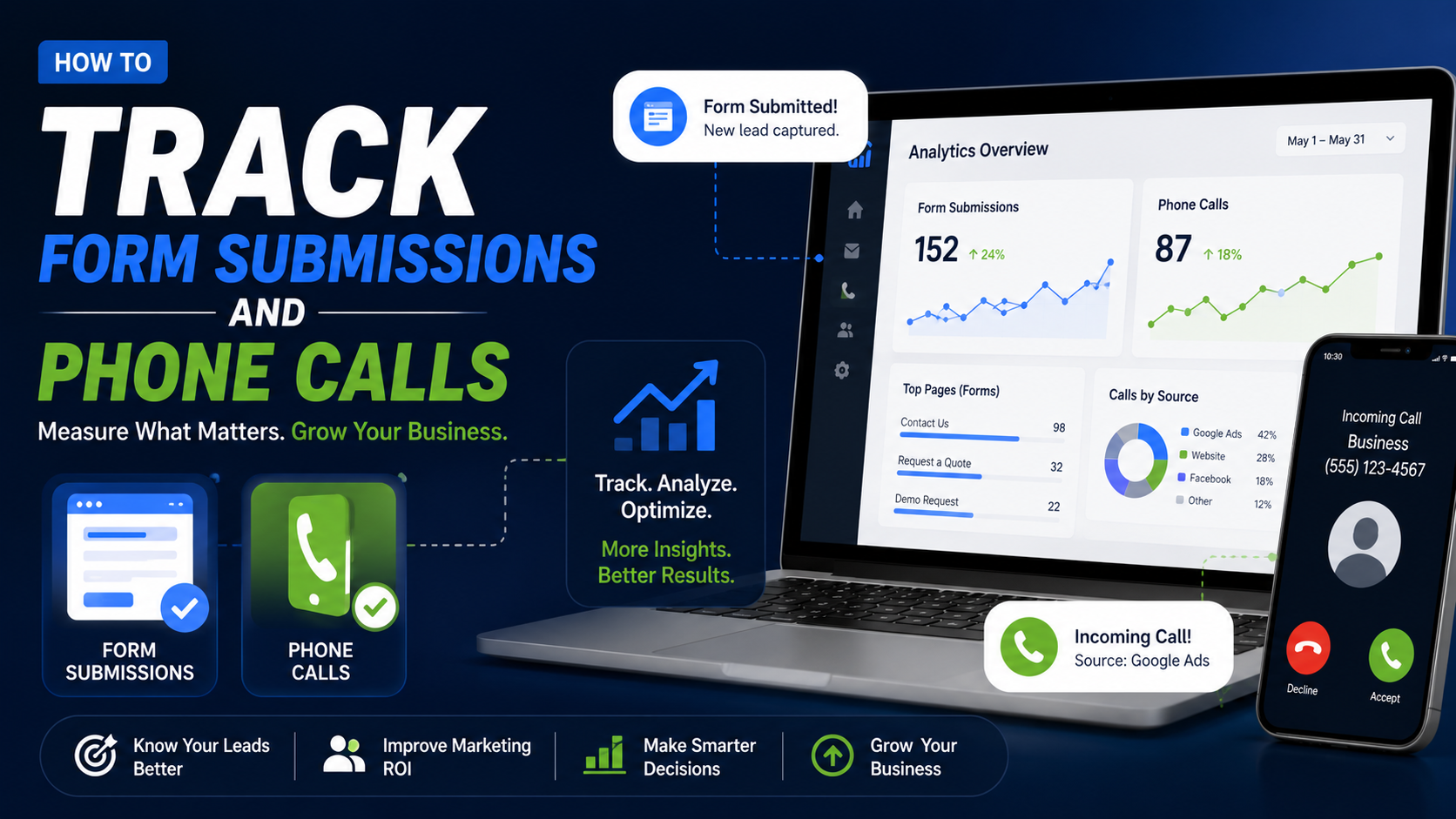
One of the most misleading website reports I have seen looked great at first.
Traffic was increasing.
Google Ads clicks were coming in.
The contact page was getting plenty of visits.
The business owner was happy because the marketing dashboard looked busy.
Then someone asked a very simple question:
“How many actual leads did we get?”
Nobody knew.
The website had Google Analytics installed, but form submissions were not being tracked properly.
Phone calls were not tracked at all.
Some people were clicking the phone number, but nobody knew whether they actually called.
Other customers were calling after seeing a Google Ad, but those calls were simply mixed together with referrals, organic traffic, repeat customers, and everything else.
That is the problem with measuring only traffic.
A thousand website visitors can look impressive.
But for a local service business, I would usually rather know:
How many people requested a quote?
How many called?
Which pages created those leads?
Which Google Ads campaigns produced them?
Which leads became customers?
That is where conversion tracking becomes useful.
You do not need the most complicated analytics setup in the world.
You need reliable tracking for the actions that affect the business.
For most service websites, form submissions and phone calls are a good place to start.
First, Decide What Counts as a Lead
Before touching Google Analytics or Google Tag Manager, define the action.
This sounds basic, but it prevents a lot of bad reporting.
Suppose a roofing website has:
A phone number.
Contact form.
Free inspection form.
Newsletter form.
PDF download.
WhatsApp link.
Should all six count equally?
Probably not.
I would usually separate them.
For example:
Primary Lead Actions
- Request a quote
- Book an inspection
- Submit a contact enquiry
- Qualified phone call
- Book a consultation
Secondary Actions
- Click phone number
- Open WhatsApp
- Download brochure
- Join newsletter
- View contact page
This distinction matters.
Someone clicking a phone number may become a lead.
Someone viewing the contact page has not become one yet.
Do not turn every sign of interest into a “conversion” just because the reporting number looks better.
Track Successful Form Submissions, Not Just Button Clicks
This is probably the most common mistake I see with form tracking.
Someone configures an event that fires when the visitor clicks:
Submit
Then analytics records:
Lead.
But what if the visitor forgot their email address?
The form displays:
“Please complete all required fields.”
No submission happened.
Analytics still recorded a conversion.
Now your reports are inflated.
The better goal is to track a successful submission.
Google Analytics 4 currently recommends the generate_lead event when a user submits a form or request for information. Google also provides lead-funnel events such as qualify_lead, working_lead, and close_convert_lead for businesses that want to measure what happens after the initial enquiry.
That is a useful structure because it separates:
Someone filled out a form.
from:
Someone became a qualified prospect.
and:
Someone eventually became a customer.
Those are very different outcomes.
Method 1: Track a Thank You Page
This is one of the simplest setups.
Imagine the visitor submits your quote form.
After successful submission, the website redirects to:
/thank-you/
or:
/quote-request-received/
You can create a GA4 event when that confirmation page loads.
Google’s current GA4 documentation specifically shows this method and recommends creating a generate_lead event based on a confirmation-page view when appropriate.
The flow looks like this:
Visitor opens service page.
↓
Completes form.
↓
Form submits successfully.
↓
Visitor reaches thank you page.
↓
generate_lead fires.
Simple.
Why Thank You Page Tracking Works Well
The main advantage is reliability.
The visitor usually cannot reach the confirmation page until the form succeeds.
That is much better than tracking:
Button click.
The thank you page also helps with:
Conversion confirmation.
Google Ads tracking.
Meta Ads tracking.
CRM workflows.
Lead-source analysis.
It can be one of the cleanest options for simple websites.
But Thank You Page Tracking Is Not Perfect
There are a few things to watch.
Someone could bookmark the page.
Refresh it.
Return to it later.
Visit the URL manually.
If every page view counts as a brand-new lead, your numbers may become inflated.
For low-volume small-business sites, the difference may be minor.
For larger campaigns, I prefer more direct event tracking where possible.
Still, a dedicated confirmation page is a perfectly reasonable starting point.
Method 2: Track the Actual Form Success Event
Many modern forms submit without reloading the page.
You fill in the fields.
Press the button.
Then a message appears:
“Thanks. We received your enquiry.”
The URL never changes.
This is common with:
WordPress forms.
AJAX forms.
React applications.
Landing-page builders.
HubSpot forms.
Custom JavaScript forms.
In this case, you need to detect the successful submission itself.
There are several ways to do that.
The best option depends on how the form is built.
Using Google Tag Manager
Google Tag Manager, usually shortened to GTM, is useful because it lets you manage analytics and marketing tags without hard-coding every tracking action separately into the website.
GTM includes a Form Submission trigger.
Google’s current Tag Manager documentation notes that the trigger can be configured with Check Validation, which helps prevent the tag from firing when a form submission attempt fails validation. Google also recommends limiting the trigger to the forms or URLs you actually want to measure rather than firing indiscriminately.
For a basic form, you might track using:
Form ID.
Form classes.
Page URL.
Form URL.
Specific conditions.
For example:
Form ID equals:
quote-form
Then send:
generate_lead
to GA4.
Some Forms Need Custom Tracking
Not every modern form behaves like a traditional HTML form.
A developer may override the normal submit behavior.
A React component may submit through an API.
A WordPress plugin may use AJAX.
A booking widget may load through another script.
In those situations, GTM’s normal form trigger may not detect success correctly.
Google Tag Manager supports custom events for exactly this kind of implementation, including situations where default form behavior has been overridden. A developer can push a custom event into the data layer when the submission is genuinely successful, and GTM can listen for that event.
For example, conceptually:
quote_form_success
fires only after the server confirms the enquiry.
Then GTM sends:
generate_lead
to GA4.
I generally prefer this approach on custom websites because you are measuring the actual business event rather than guessing from clicks.
Do Not Track the Thank You Message Appearing Without Testing It
Some setups use the visibility of text such as:
“Thank you!”
as the trigger.
That can work.
But test carefully.
What if the message exists hidden in the page HTML before submission?
What if it appears after an unsuccessful request?
What if the same phrase appears elsewhere?
Tracking based on visual elements can be fragile.
Whenever possible, use:
Successful form event.
Dedicated data layer event.
Confirmation page.
Those are cleaner signals.
Mark Important Events as Key Events in GA4
GA4 now uses the term key event for events that are particularly important to the business.
Once your form submission event is arriving correctly, you can mark it as a key event.
Google’s current documentation says any collected event can be marked as a key event so you can measure the channels that contributed to that important action.
For example:
Event:
generate_lead
Key event:
Yes.
Now your reporting can focus on traffic that actually creates enquiries.
Give Different Lead Forms Useful Context
Suppose your website has:
Roof Repair form.
Roof Replacement form.
Commercial Roofing form.
General Contact form.
If all four simply send:
generate_lead
you know a lead happened.
But you may not know what type.
Add useful parameters where practical.
For example:
form_name = roof_repair
lead_type = residential
service = roof_repair
or:
form_location = service_page
This can help later when analyzing which pages and services actually produce business.
Do not send sensitive personal information into analytics.
You do not need the customer’s:
Name.
Email.
Phone number.
Private message.
Analytics is for behavior and attribution, not storing the lead record itself.
That belongs in your CRM.
Test Everything in GA4 DebugView
Never assume tracking works because the tag is installed.
Use it yourself.
Google Analytics provides DebugView specifically for troubleshooting events in real time. Google’s documentation recommends using Google Tag Assistant or preview/debug mode when validating website event implementations.
I normally test like this:
Open Tag Manager preview mode.
Visit the website.
Complete the form.
Make sure the correct GTM trigger fires.
Check that generate_lead is sent.
Open GA4 DebugView.
Confirm the event arrives.
Then submit an invalid form.
Make sure the event does not fire.
That second test is important.
Test Every Form Individually
Do not test only the contact page and assume everything else works.
Check:
Homepage form.
Service forms.
Landing-page forms.
Footer forms.
Popup forms.
Mobile forms.
Booking forms.
Different forms may use completely different technology.
I have seen websites where the contact page tracked perfectly while the main Google Ads landing page tracked nothing.
That is the page where the business was spending money.
Now Let’s Talk About Phone Calls
Phone tracking is slightly more complicated because there are two different actions people often confuse:
Phone-number click
and:
Actual phone call
They are not the same thing.
Someone can click the phone number and cancel before calling.
Someone can manually type your number without clicking anything.
Someone can call from another device.
So you need to decide how accurate your call measurement needs to be.
Method 1: Track Click-to-Call Actions
This is the easiest setup.
Your mobile website has:
Call Now
or:
tel:+1…
When someone taps it, send an event such as:
phone_click
to GA4.
You can do this through GTM using a click trigger that looks for:
Click URL starts with tel:
Now you know how many visitors attempted to call.
This is useful.
But do not label it:
“Phone Calls”
because you do not actually know whether the call connected.
Google Ads makes the same distinction in its documentation: mobile phone-number click tracking measures the click on the number or button, not the actual phone call.
Call it what it is:
Phone Click
That keeps reporting honest.
Track Different Phone Placements if Needed
A local service site may have phone links in:
Header.
Hero section.
Sticky mobile bar.
Service page.
Footer.
Contact page.
You can send additional context such as:
click_location = sticky_mobile
or:
click_location = hero
Now you can answer:
“Where are people calling from?”
Maybe 70% of call clicks come from the sticky mobile button.
That tells you something useful about customer behavior.
Method 2: Track Actual Calls From Google Ads
If you run Google Ads, Google provides website call conversion tracking in supported locations.
The system can dynamically replace your normal business number with a Google forwarding number for eligible visitors who came from an ad.
The call still reaches your real business number.
But Google can record details such as:
Which campaign generated the call.
Which ad group.
Call duration.
Call timing.
And other call-reporting information.
Google’s current documentation says website call conversion tracking uses dynamically generated Google forwarding numbers and lets advertisers set a minimum call duration before a call is counted as a conversion.
This is much more useful than simply tracking:
“Someone tapped the number.”
Why Call Duration Matters
Imagine your business receives these calls:
Call 1: 8 seconds.
“Sorry, wrong number.”
Call 2: 14 seconds.
“Are you open Sunday?”
Call 3: 6 minutes.
“I need a full driveway replacement. Can someone come out this week?”
Should all three count equally?
Probably not.
Google Ads lets you define a minimum call duration for certain call conversion actions, so calls shorter than that threshold do not count as conversions.
The correct threshold depends on the business.
Do not blindly copy someone else’s:
“60 seconds is a qualified call.”
Listen to real calls where legally and appropriately available, or review call outcomes.
Maybe meaningful plumbing leads usually last 45 seconds.
Maybe legal consultations need several minutes.
Use your own data.
Calls From Ads Are Different From Calls From Your Website
Google Ads can measure several types of call interactions.
For example:
Calls directly from ads.
Calls after someone clicks an ad and then calls from the website.
Clicks on phone links.
Imported call outcomes from other systems.
Google currently documents multiple call conversion methods and recommends choosing the one that matches how customers contact you.
This distinction matters when reviewing reports.
Do not combine:
Ad call.
Website call.
Phone click.
Qualified sales call.
into one vague number called:
“Calls.”
Third-Party Call Tracking
Google Ads call tracking is useful for Google Ads attribution.
But what if you also want to measure calls from:
Organic search.
Google Business Profile.
Facebook.
Bing.
Email.
Direct traffic.
Referral websites.
Offline campaigns.
Then third-party call tracking may be more useful.
Common platforms include services such as:
CallRail.
WhatConverts.
CallTrackingMetrics.
Twilio-based custom systems.
These systems may provide tracking numbers that forward calls to the real business line.
The visitor calls the tracking number.
The business receives the call normally.
The tracking platform records attribution information.
Dynamic Number Insertion
A common call-tracking technique is Dynamic Number Insertion, often shortened to DNI.
Imagine a visitor arrives from Google Ads.
They see:
Number A.
Someone arriving from organic Google search may see:
Number B.
Someone from Facebook may see:
Number C.
All numbers forward to the same business.
Now the tracking system can associate calls with acquisition sources.
More advanced implementations can use a pool of numbers to associate individual website sessions with calls.
This can help answer questions such as:
Which keyword generated the call?
Which landing page?
Which campaign?
Which source?
Keep Your Real Business Number Consistent Where It Matters
Dynamic call tracking should be implemented carefully.
You generally do not want to randomly replace business phone information in a way that creates confusing public listings or inconsistent local business data.
A proper call-tracking implementation dynamically replaces numbers for eligible website visitors while preserving the underlying business information appropriately.
If local SEO matters heavily to your business, make sure whoever sets up call tracking understands local citation and business-profile consistency.
Do not simply buy five numbers and start changing your company phone number everywhere.
Track Calls From Google Business Profile Separately Where Possible
For many local businesses, Google Business Profile can produce a large number of phone calls.
That traffic may never visit the website.
If you only track website conversions, you can significantly underestimate local search performance.
Depending on your setup, you might use:
Google Business Profile performance data.
A carefully configured tracking number.
CRM source information.
Call-tracking software.
The important thing is recognizing that website analytics only sees website activity.
Customers can convert without visiting the site.
Your CRM Is Where Lead Quality Becomes Clear
Analytics tells you:
A form was submitted.
Call tracking tells you:
A call happened.
The CRM should tell you:
Was it any good?
This is the part I think many businesses skip.
Suppose Google Ads produces:
30 form leads.
20 calls.
Looks great.
Then sales reviews them.
15 forms were spam.
10 callers wanted services you do not offer.
8 were outside your service area.
5 had no budget.
12 became qualified opportunities.
That is a very different picture.
Your tracking needs to eventually connect marketing activity with business outcomes.
A Better Lead Funnel
I like a funnel that looks roughly like this:
Website visitor.
↓
Form submission or phone call.
↓
Lead.
↓
Qualified lead.
↓
Appointment or estimate.
↓
Proposal.
↓
Customer.
↓
Revenue.
GA4’s current recommended lead-generation events include stages such as qualify_lead, working_lead, and close_convert_lead, which can help businesses model more than the initial form submission when they have the systems to do so.
You do not need to implement everything on day one.
But it is useful to understand where tracking should eventually go.
Use a CRM
For small and medium service businesses, common CRM options include:
HubSpot.
Pipedrive.
Zoho CRM.
Close.
Salesforce.
Jobber for certain field-service businesses.
Industry-specific systems.
Even a well-managed spreadsheet can work at very small scale.
What matters is recording:
Lead source.
Service requested.
Date.
Lead owner.
Qualified or not.
Outcome.
Revenue if won.
Now marketing reports can be compared with reality.
Capture UTM Parameters
UTM parameters are useful for identifying campaign traffic.
For example:
utm_source=facebook
utm_medium=paid_social
utm_campaign=summer_roofing
A form can capture those values in hidden fields and send them into your CRM.
Now the sales record can show:
Lead source: Facebook
Campaign: Summer Roofing
Service: Roof Replacement
That is much better than asking every customer:
“How did you hear about us?”
People often do not remember accurately.
Preserve the Original Lead Source
Be careful with attribution.
A visitor may first discover you through Google Ads.
Return directly three days later.
Then submit the form.
If your setup only records the final session, you may see:
Direct.
Some businesses therefore capture:
First-touch source.
Latest source.
Campaign.
Landing page.
Depending on how sophisticated your setup needs to be.
You do not need an enterprise attribution system for a five-person landscaping company.
But preserving basic campaign information can be very useful.
Import Better Conversion Data Back Into Google Ads
The biggest improvement in paid advertising often comes when you stop telling Google Ads:
“Every lead is equally valuable.”
Suppose Campaign A generates:
50 leads.
Only 5 become qualified.
Campaign B generates:
25 leads.
15 become qualified.
If Google Ads optimizes only toward initial form submissions, Campaign A may look better.
But Campaign B is clearly producing better prospects.
Google Ads supports conversion actions from website activity, phone calls, and imported outcomes, and Google specifically notes that imported call conversions can provide more control over which calls count and can include actual sale values when those outcomes are tracked elsewhere.
This is where CRM integration becomes powerful.
Instead of optimizing only for:
Lead Submitted
you can eventually optimize around:
Qualified Lead.
Booked Appointment.
Customer.
GA4 Events Can Also Be Used With Google Ads
If you have a linked GA4 and Google Ads setup, important GA4 events can be used to create Google Ads conversions.
Google’s current documentation says key events can be used as the basis for Google Ads conversions, with conversion settings managed across Analytics and Ads.
This can reduce duplicate implementation.
But be careful.
Do not accidentally create:
One native Google Ads conversion.
Plus one imported GA4 version of the exact same lead.
Then count both as primary conversions.
That can double-count activity and confuse automated bidding.
Know what each conversion action represents.
Name Your Events Clearly
Do not create tracking names like:
button1
form2
conversion_new
lead-final-final
Six months later, nobody knows what they mean.
Use understandable names.
For example:
generate_lead
phone_click
book_appointment
whatsapp_click
quote_request
Then use parameters for extra detail.
Clear naming makes reporting much easier to maintain.
Do Not Count Every Contact Action as Primary
Imagine you track:
Contact page viewed.
Phone number clicked.
WhatsApp clicked.
Form started.
Form submitted.
Now Google Ads sees all five as primary conversions.
A single customer could generate four or five “conversions.”
That can make campaign optimization messy.
I would normally separate:
Micro-conversions.
from:
Real lead actions.
For example:
Primary
Successful form submission.
Qualified call.
Booked appointment.
Secondary
Phone click.
WhatsApp click.
Form start.
Pricing page view.
That gives you useful behavioral data without pretending every interaction has the same business value.
Test Phone Tracking Yourself
Just like forms, call tracking needs testing.
Try this process:
Open the website from the traffic source you are testing.
Confirm the tracking number appears when expected.
Call it.
Make sure the real business phone rings.
Answer it.
Talk long enough to pass your chosen threshold.
End the call.
Check the reporting later.
Then test:
Mobile click.
Desktop display.
Different page templates.
Cookie/consent behavior where applicable.
Do not discover during a campaign that the tracking number forwards to the wrong line.
Check Call Quality, Not Only Call Count
Suppose Campaign A generates:
40 calls.
Campaign B:
20 calls.
Campaign A looks better.
Then you review outcomes.
Campaign A:
25 wrong-service enquiries.
5 spam calls.
5 outside service area.
5 qualified.
Campaign B:
3 irrelevant.
17 qualified.
Which campaign would you rather fund?
Exactly.
This is why I eventually want to connect call tracking to:
Qualified calls.
Appointments.
Sales.
Revenue.
Call volume is only the beginning.
Missed Calls Need Tracking Too
A marketing campaign can work perfectly and still lose money because nobody answers.
Imagine:
20 qualified people call.
12 are missed.
The marketing report says:
20 calls generated.
The sales report says:
Not enough leads.
Both may technically be correct.
Track:
Answered.
Missed.
Call duration.
Callback.
Outcome.
A missed-call notification or CRM workflow can help the team recover opportunities quickly.
Form Response Time Matters Too
The same problem happens with forms.
You measure:
50 submissions.
But the business responds two days later.
Tracking proves marketing created the enquiry.
It does not guarantee the company converted it.
Your CRM should ideally record:
Submission time.
First response time.
Appointment.
Outcome.
This makes it possible to separate:
Marketing problem.
from:
Sales follow-up problem.
Use Alerts for High-Intent Leads
When an important form comes in, someone should know.
Possible workflows:
Form → CRM.
Form → email notification.
Form → Slack alert.
Form → SMS notification for urgent services.
Form → assigned salesperson.
Tools such as Zapier, Make, HubSpot workflows, and native CRM automations can help.
Do not build overly complicated automation if a simple email works.
Just make sure the lead does not disappear.
Spam Can Destroy Your Reporting
A form generates:
120 “leads.”
Everyone is excited.
Then you discover:
85 are SEO spam.
Crypto promotions.
Bots.
Fake submissions.
That is why form spam is not only an inbox problem.
It is an analytics problem.
Use reasonable spam prevention:
Honeypots.
Server-side validation.
Modern bot protection.
Rate limiting.
Appropriate CAPTCHA.
Then mark spam or disqualified leads properly in your CRM.
Your marketing reports should not treat spam as success.
Duplicate Leads Can Cause Similar Problems
A customer:
Submits form.
Gets nervous.
Submits again.
Calls.
Now your system says:
Three conversions.
But there is one person.
You may not eliminate every duplicate from top-level analytics, but your CRM should identify duplicate contacts where possible.
This becomes especially important when calculating:
Cost per lead.
Cost per qualified lead.
Customer acquisition cost.
Privacy and Consent Still Matter
Tracking should not become an excuse to collect everything possible.
Google’s current call-conversion guidance tells advertisers to clearly disclose data collection and obtain consent where required by applicable law or Google policies.
The exact requirements depend on:
Where your business operates.
Where users live.
Which technologies you use.
What information is collected.
Work with appropriate legal or privacy professionals when necessary.
From a practical website standpoint, avoid sending personal lead details into analytics platforms unless the platform explicitly supports and permits that data type.
A Simple Tracking Setup for a Local Service Business
Suppose you run a landscaping company.
Your website gets traffic from:
Google Ads.
Organic search.
Google Business Profile.
Facebook.
Referrals.
I might track:
GA4
generate_lead
Successful estimate forms.
phone_click
Website phone-number taps.
whatsapp_click
WhatsApp interactions if relevant.
Google Ads
Successful estimate conversion.
Website call conversions where supported and properly configured.
Calls from ad assets.
CRM
Name.
Phone.
Email.
Service.
Location.
Source.
Campaign.
Qualified status.
Estimate value.
Won/lost.
Revenue.
Call Tracking
Actual calls.
Duration.
Source.
Campaign where possible.
Answered or missed.
Qualified status.
Now you can answer:
How many leads did Google Ads create?
How many were forms?
How many were calls?
Which service produced them?
How many were qualified?
How many became jobs?
What revenue came back?
That is useful marketing measurement.
Example: Why This Changes Decisions
Imagine this report:
Campaign A — Landscaping
Spend: $2,000
Leads: 50
Cost per lead: $40
Campaign B — Drainage
Spend: $2,000
Leads: 25
Cost per lead: $80
At first:
Campaign A wins.
Now add CRM data.
Campaign A
50 leads.
10 qualified.
3 customers.
Revenue: $6,000.
Campaign B
25 leads.
18 qualified.
8 customers.
Revenue: $28,000.
The entire decision changes.
This is why I do not like optimizing campaigns from form counts alone.
A Practical Form Tracking Checklist
Before calling your form tracking complete, check:
Is the analytics tag installed?
Does a successful submission trigger an event?
Does an unsuccessful submission avoid triggering it?
Is the event called something understandable?
Is the important event marked appropriately in GA4?
Does the correct form name or service get recorded?
Does the lead reach the CRM?
Are campaign details preserved?
Does Google Ads receive the correct conversion if needed?
Does the thank you page work?
Does the confirmation email send?
Does it work on mobile?
Have you tested it yourself?
If yes, you are in a much better position than most websites.
A Practical Phone Tracking Checklist
Check:
Are phone numbers clickable on mobile?
Are clicks tracked separately from actual calls?
Are Google Ads call conversions configured if relevant?
Is a call-duration threshold sensible?
Are tracking numbers forwarding correctly?
Can you identify the source where needed?
Are missed calls visible?
Can the CRM record call outcomes?
Can sales mark calls as qualified or unqualified?
Are campaign and keyword details available where supported?
Are call conversions being counted correctly for bidding?
Does someone follow up on missed calls?
Again, tracking is only useful when someone acts on the data.
Common Form Tracking Mistakes
Tracking Submit Button Clicks
Invalid forms become conversions.
Tracking Every Page View as a Lead
Reports become meaningless.
Not Testing AJAX Forms
Nothing fires after successful submission.
Double-Tracking
GA4 and Google Ads both record the same lead twice as primary conversions.
No Form Identification
You know a lead happened but not which service they wanted.
Sending Personal Information to Analytics
Wrong tool for sensitive lead details.
No CRM Connection
Marketing sees quantity but not quality.
Ignoring Spam
Bots make campaigns look successful.
Common Call Tracking Mistakes
Treating Phone Clicks as Calls
A tap is not a conversation.
Counting Every Call as Qualified
Wrong numbers and five-second calls inflate performance.
Using One Tracking Number for Everything
Source attribution becomes weak.
Never Testing Forwarding
Calls may not reach the correct team.
Ignoring Missed Calls
Marketing generates opportunities that sales never handles.
Tracking Calls but Not Outcomes
You know how many rang, not how many sold.
Choosing an Arbitrary Call-Length Threshold
Your conversion definition may not match real customer conversations.
Start Simple
If your current analytics only measures page views, do not try to build the world’s most advanced attribution system tomorrow.
Start with:
Step 1
Track successful forms.
Step 2
Track phone-number clicks.
Step 3
Track actual calls where they matter.
Step 4
Connect leads to the CRM.
Step 5
Record qualified vs unqualified.
Step 6
Record customers and revenue.
Step 7
Feed useful outcomes back into advertising platforms where appropriate.
That progression is enough for most businesses.
The Goal Is Not More Data
This is probably the most important part.
It is very easy to build an analytics setup with:
100 events.
40 dashboards.
15 custom dimensions.
Seven attribution reports.
Then nobody knows which number matters.
For a local service business, I would rather have a simple report showing:
Google Ads spend.
Forms.
Calls.
Qualified leads.
Booked estimates.
Customers.
Revenue.
That can actually guide a business decision.
The point of tracking form submissions and phone calls is not to prove that the website gets activity.
It is to understand which marketing creates real opportunities.
A form submission tells you someone raised their hand.
A phone call tells you someone wanted a conversation.
The CRM tells you whether they were a real prospect.
Sales data tells you whether they became a customer.
When those pieces connect, marketing stops being:
“We got 4,000 visitors this month.”
and becomes:
“Google Ads generated 32 qualified leads, 11 became customers, and those customers produced $46,000 in revenue.”
That is the kind of tracking worth building.
Start with successful actions.
Name them clearly.
Test them yourself.
Separate clicks from real calls.
Connect leads to outcomes.
And do not let a dashboard convince you the marketing is working until the business results agree.