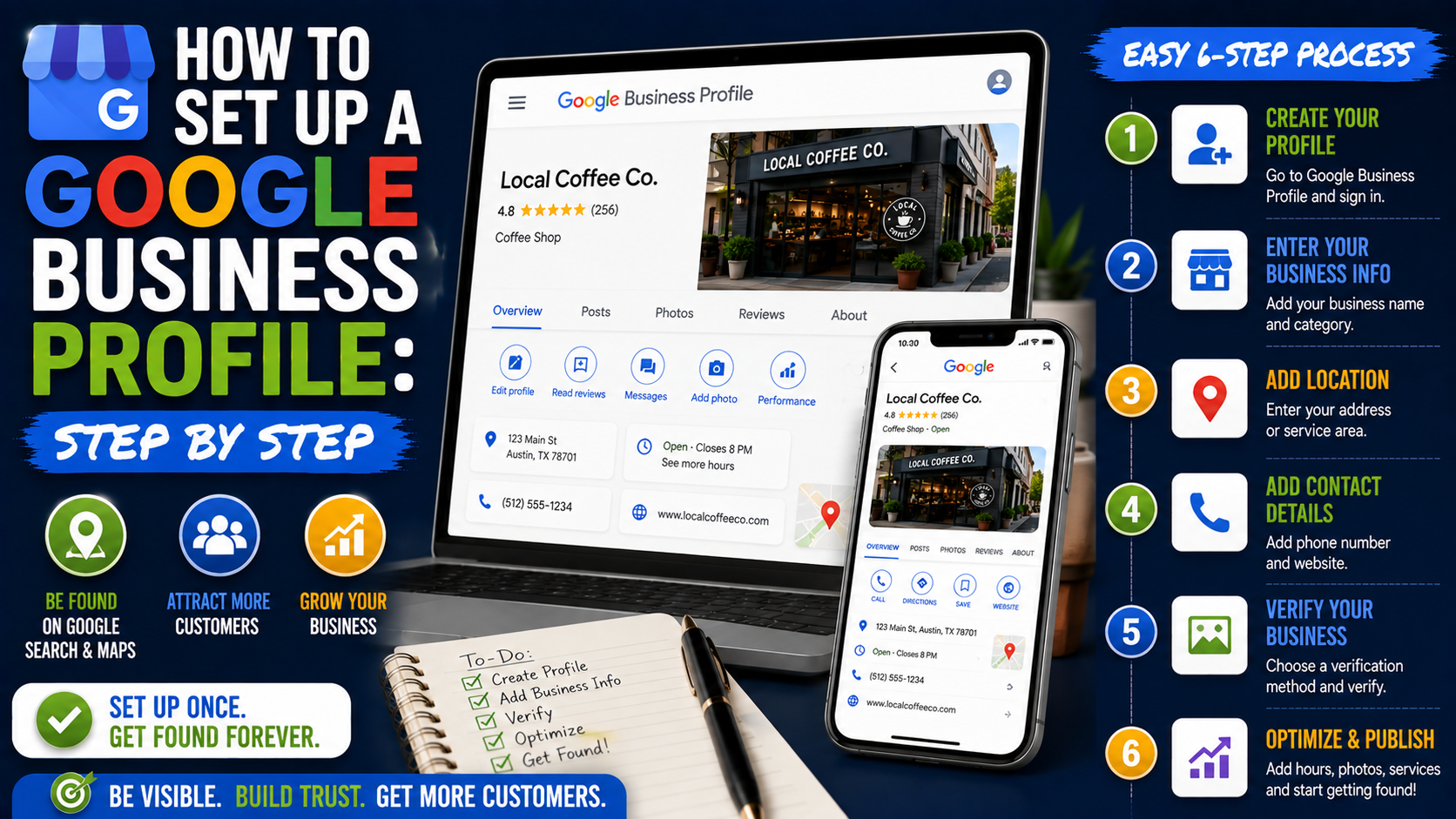
A Google Business Profile can look deceptively simple.
You enter a business name, choose a category, add a phone number, and you’re done. Right?
That is usually how problems start.
I’ve seen profiles where the business owner rushed through setup and later discovered the wrong category was selected, the home address was visible to customers, an old phone number was still showing, or somebody had accidentally created a second listing for a business that was already on Google.
None of those problems are particularly exciting to fix.
That is why I prefer treating the initial setup like setting up a website domain or company email: spend a little more time getting the foundation right so you do not have to untangle it later.
A Google Business Profile is free and is designed for eligible businesses that interact with customers in person, either at a location customers visit or by traveling to customers in a local service area. Once the profile is claimed and verified, it can appear across Google Search and Google Maps.
Here is how I would set one up from scratch.
First, Make Sure You Actually Need a Google Business Profile
Before touching the setup page, make sure the business is eligible.
A typical local business usually fits into one of these situations:
- Customers visit your location.
- You travel to customers.
- You do both.
Think restaurants, dentists, plumbers, landscapers, attorneys, salons, roofing contractors, repair companies, retail stores, and similar businesses.
A purely online business with no face-to-face customer interaction is a different situation. Google currently describes Business Profiles as being intended for businesses that interact with customers in person.
This distinction matters because trying to force an ineligible business into Google Maps can create verification or suspension problems later.
Step 1: Search Google Before Creating Anything
This is the first thing I would do.
Open Google Maps and search:
Business name + city
Then try Google Search.
For example:
BrightStone Roofing Dallas
or:
BrightStone Roofing TX
You are checking whether a profile already exists.
It is surprisingly common to find one.
Maybe the previous owner created it.
Maybe an employee set it up.
Maybe an old marketing agency still controls it.
Maybe Google already has an unclaimed listing.
If the business already exists, do not immediately create another profile.
Google allows authorized business owners to claim an existing unverified profile. If somebody else has already verified it, there is also an ownership-request process.
Creating a duplicate because you cannot access the original profile usually makes the situation messier.
Step 2: Decide Which Google Account Will Own the Profile
Do not underestimate this step.
The person creating the profile today may not be the person managing it two years from now.
I would avoid making an employee’s personal Gmail address the only account controlling an important business asset.
The same applies to freelancers and agencies.
Ideally, the business itself retains ownership.
Google allows you to use an existing Google Account or create one with Gmail or another email address. A company email can also be linked to a Google Account.
For example:
marketing@yourcompany.com
can be a better long-term management choice than:
randomemployee1997@gmail.com
Other employees, SEO consultants, or agencies can be given appropriate access later.
That way, changing marketing providers does not become an ownership crisis.
Step 3: Add the Business to Google
If you confirmed that no profile already exists, you can create one through Google Business Profile.
Google’s current process is straightforward:
Go to the Business Profile creation flow, choose Add your business to Google, enter the requested business information, and continue through verification.
This is where I would slow down.
Do not treat the next few fields like an SEO keyword exercise.
They are supposed to describe the real business.
Step 4: Enter the Real Business Name
Suppose the company is officially known as:
Oakline Landscaping
Use:
Oakline Landscaping
Do not turn it into:
Oakline Landscaping | Best Lawn Care Patio Contractor & Landscaper Near Me
even if you have seen competitors doing something similar.
Google’s guidelines say the name should represent the business as it is consistently recognized in the real world, including on branding, signage, stationery, and the website. Unnecessary additions to the name can violate Google’s guidelines.
A useful test is simple:
Would a customer recognize this exact business name from your website, invoice, storefront, work vehicle, or signage?
If yes, you are probably on the right track.
Step 5: Choose Your Primary Category Carefully
The category field deserves more attention than most people give it.
Google uses categories to understand what kind of business you operate.
Google’s own guidance recommends selecting a specific primary category that best describes the business. For example, it recommends a specific option such as Nail Salon rather than using a broader category when the specific one accurately applies. Categories can also affect how a business appears in local search.
Imagine a company offers:
Roof installation
Roof repairs
Gutter installation
Skylight repair
Siding
If roofing is clearly the main operation, the primary category should represent that core business rather than every service the company happens to offer.
I use this question:
What is this business, primarily?
Not:
What services could this business possibly sell?
That distinction makes category selection much easier.
Step 6: Avoid Adding Every Category You Can Find
More categories do not automatically mean better rankings.
Google actually recommends using the fewest categories necessary to describe the core business accurately.
A landscaping company that occasionally pressure-washes a patio does not automatically need to present itself as a pressure-washing company.
A general contractor that installed one fence last year does not necessarily need a fence contractor category.
Keep the categories aligned with meaningful, established parts of the business.
You can describe individual services more specifically later.
Step 7: Decide Whether Customers Visit Your Address
This is where home-service companies frequently make mistakes.
Ask:
Do customers actually come to this business location during operating hours?
If you run a retail store, restaurant, dental clinic, salon, or staffed office that customers legitimately visit, the answer may be yes.
If you are a plumber operating from home and every job happens at the customer’s property, the answer is probably no.
Google distinguishes between storefront businesses, service-area businesses, and hybrid businesses.
A service-area business travels to customers but does not serve them at its address. A hybrid business serves customers at its location and also travels or delivers to them.
Configure the listing around the way the business actually operates.
Step 8: Hide Your Address if Customers Do Not Visit It
Suppose you run an electrical company from your home.
Your vans leave every morning, technicians visit customer properties, and nobody ever comes to your house to receive electrical services.
You generally should not display the house as though it were a customer-facing electrical shop.
Google specifically instructs service-area businesses that do not serve customers at their address to remove the address from the public Business Profile and use service areas instead.
This is better for accuracy and privacy.
It also prevents customers from following Google Maps directions and unexpectedly arriving at someone’s house.
Step 9: Add Your Service Areas Realistically
Service areas are useful, but they are often misunderstood.
Adding 50 cities does not make a business rank across 50 cities.
Google currently allows up to 20 service areas. These are defined using cities, postal codes, or other supported geographic areas rather than an editable radius. Google also recommends keeping the overall service area reasonably close to the business base, generally within about two hours of driving time.
For example, a contractor based near Dallas might genuinely serve:
Plano
Frisco
Allen
McKinney
Richardson
Carrollton
That makes sense if crews actually take jobs there.
Adding Houston, Austin, San Antonio, Oklahoma City, and half of Texas because you would theoretically accept a $500,000 project there does not make the service area more useful.
Add places you realistically serve.
Step 10: Enter a Phone Number Someone Actually Answers
This is one of those boring fields that can directly cost money when it is wrong.
Enter your main customer-facing business number.
Then test it.
Actually call it.
I have come across business listings where the number:
rang indefinitely,
went to an old employee,
had the wrong voicemail,
or had been disconnected months earlier.
Imagine a customer searching for an emergency plumber and finding your profile.
They are not going to investigate why the phone number is wrong.
They will simply call the next company.
Step 11: Add the Correct Website
Use the official business website.
For a single-location business, this will often be the homepage.
For a multi-location company, linking each Business Profile to its relevant location page can make more sense.
For example:
Houston GBP → Houston location page
Dallas GBP → Dallas location page
Austin GBP → Austin location page
Whatever page you choose should work properly on a phone.
A potential customer may move from Google Maps to your website in one tap. If the page takes forever to load or makes it impossible to find the phone number, you have wasted a good lead.
Step 12: Complete Google’s Verification Process
Verification is where the setup stops being purely form-filling.
Google requires businesses to verify their Business Profile so it can confirm the business and its authorized management.
The important thing to know is that you do not necessarily get to choose your preferred verification method.
Google automatically determines which verification options are available based on factors such as business type, region, business hours, and publicly available information. In some cases, more than one verification method can be required.
Possible methods can include:
Phone or SMS
Video verification
Live video
Mail/postcard
The exact options shown to one business may be different from another business.
Step 13: Prepare Properly for Video Verification
If Google offers or requires video verification, do not start recording before understanding what it wants.
The point is usually to demonstrate three things:
The business exists where you say it does.
The business performs the work it claims to perform.
You are authorized to manage it.
Depending on the business, useful evidence might include:
Exterior signage
Street surroundings
Work vehicles
Branded equipment
Tools
Products
Storage areas
Employee-only access
Keys to the premises
Other legitimate proof of management
Google’s live-video guidance specifically mentions showing location evidence, business equipment or products, and proof that you manage the business.
For a plumbing company, showing plumbing equipment and a branded work vehicle makes sense.
Showing a laptop displaying the company website while sitting in an unrelated parking lot is much less convincing.
Step 14: Do Not Keep Changing Major Information During Verification
This is a particularly useful detail if verification is happening by mail.
Google warns that changing the business name, address, or category after requesting a postcard can invalidate the mailed verification code. Requesting another code can also invalidate the previous one.
So if you are still deciding between three business names and two addresses, solve that before requesting verification.
Settle the core information first.
Then verify it.
Step 15: Be Prepared for Verification to Take Time
Some profiles are verified quickly.
Others require review.
Google currently says verification review can take up to five business days after completing the required steps, although some businesses may be verified instantly.
Do not panic and create another profile because nothing happened within an hour.
That is one of the easiest ways to create a duplicate listing.
Step 16: Add Your Real Business Hours
Once you can properly manage the profile, check the hours.
Go through every day.
Monday.
Tuesday.
Wednesday.
Thursday.
Friday.
Saturday.
Sunday.
Set the times when customers can genuinely expect the business to be operating.
Google lets businesses manage their regular hours directly through the profile.
Do not select Open 24 hours simply because customers can fill in a contact form at midnight.
If the company truly provides 24-hour emergency service, that can be appropriate.
Otherwise, use realistic hours.
Also remember to update holiday and special hours when necessary.
Step 17: Write the Description for Customers, Not Search Engines
The business description should sound like a real company introducing itself.
Bad version:
“Best Dallas roofer roofing company Dallas roof repair affordable roofing near me residential roofer.”
Nobody wants to read that.
Try something like:
“Oakline Roofing provides residential roof repairs, inspections, replacements, and storm-damage services across the Dallas area. Our team works with homeowners on shingle roofing, leak repairs, ventilation issues, and full roof replacements, with clear estimates provided before work begins.”
Much easier to understand.
Google recommends using the description to provide useful information about the business, its products, services, history, or mission. It also prohibits things such as links and descriptions dominated by promotional offers.
Step 18: Add Your Services
Now you can get more specific.
If you are an HVAC contractor, services might include:
AC repair
AC installation
Furnace repair
Furnace replacement
Heat pump installation
Ductwork repair
Emergency HVAC service
Commercial HVAC
If you are a landscaping company:
Landscape installation
Paver patios
Retaining walls
Sod installation
Yard grading
Drainage installation
Landscape lighting
Tree and shrub planting
Categories explain what the business is.
Services explain what customers can hire you to do.
Keeping those roles separate leads to a cleaner profile.
Step 19: Complete Relevant Business Attributes
Google Business Profile attributes vary by business type.
Depending on the category, you may be able to indicate things such as:
Amenities
Accessibility
Payment options
Outdoor seating
Pickup
Delivery
Appointment options
Other category-specific information
Google says these attributes can appear on Search and Maps and help customers understand additional details about the business.
Only select attributes that are actually true.
There is no benefit in making the listing technically “complete” if the information is inaccurate.
Step 20: Upload a Proper Logo and Real Photos
A profile with no images feels unfinished.
At minimum, I would prepare:
A clean business logo
A good cover image
Exterior photos for customer-facing locations
Interior photos where relevant
Team photos
Product photos
Service photos
Completed project photos
For a contractor, actual project images are especially valuable.
If someone is considering spending $15,000 on a new patio, seeing six real patios you have built is far more persuasive than seeing six stock photos of construction workers holding clipboards.
Google allows verified businesses to add photos and videos of their storefront, products, and services.
Use genuine visuals whenever possible.
Step 21: Look at the Profile From the Customer’s Side
This is a small step I never like skipping.
Once everything is published, stop looking at the editing interface.
Search your business like a customer would.
Open Google Search.
Open Google Maps.
Then check:
Is the name correct?
Is the phone number clickable?
Are the hours correct?
Does the map pin look right?
Is the website link working?
Does the primary category make sense?
Are useful photos appearing?
Is the address displayed or hidden correctly?
Are the services accurate?
Sometimes a mistake becomes obvious only when you look at the listing as an outsider.
Step 22: Start Asking Real Customers for Reviews
Do not wait six months before thinking about reviews.
Build the request into the normal customer journey.
For a contractor, send it after completing the project.
For a dentist, send it after the appointment.
For an auto repair shop, send it after the customer picks up the vehicle.
For a restaurant, make review requests available through appropriate post-visit channels.
You can manage this manually using:
SMS
A Google review link
QR codes
or automate the process with tools such as:
Jobber
Housecall Pro
Podium
Birdeye
NiceJob
HubSpot
Whatever system you choose, collect genuine feedback.
Do not buy fake reviews or create reviews yourself.
The goal is not to make the profile look perfect overnight.
It is to gradually build real evidence that customers use and trust the business.
Step 23: Respond to Reviews Like a Person
You do not need to write an essay underneath every five-star review.
A simple response works.
“Thanks, David. Glad you’re happy with the new driveway. We appreciate you choosing our team.”
That sounds much better than:
“Thank you for your valuable review. Customer satisfaction is our number-one priority.”
repeated 150 times.
Negative reviews deserve calm, specific responses as well.
Remember that your response is not only for the unhappy customer.
Future customers are reading it too.
Step 24: Keep the Profile Updated
A Business Profile is not a set-it-and-forget-it asset.
Eventually:
Hours change.
Staff changes.
Services change.
Phone numbers change.
The website gets redesigned.
The company moves.
New photos become available.
Google Business Profile lets verified businesses manage information such as their location, phone number, website, hours, photos, and customer interactions through Search and Maps.
I would periodically check the profile even when nothing seems wrong.
Five minutes every now and then is much easier than discovering that customers have been calling an outdated phone number for three months.
Common Mistake: Creating Multiple Profiles for One Business
Google’s guidelines generally call for one profile per business rather than unnecessary duplicates.
Do not create:
Oakline Roofing Dallas
Oakline Roof Repair Dallas
Oakline Emergency Roofing
Oakline Roofing Services
at the same location simply because you want more Google Maps visibility.
That is not how legitimate profile expansion works.
Common Mistake: Using a Virtual Office as a Fake Storefront
Local rankings are valuable, so the temptation is understandable.
A contractor serves City A but wants to rank in City B.
Someone suggests renting a cheap virtual office in City B and creating another Business Profile.
That can create serious eligibility problems.
A location presented as a storefront should genuinely function as one under Google’s guidelines.
For businesses that travel to customers rather than receiving customers at their address, the proper service-area setup is the safer route.
Common Mistake: Keyword-Stuffing the Business Name
This is worth repeating because it is so common.
Do not transform:
Wilson Plumbing
into:
Wilson Plumbing Best Emergency Plumber Drain Cleaning Water Heater Repair Chicago
Google specifically requires businesses to represent their real-world names accurately.
Put services in the service section.
Put locations in the appropriate location and service-area fields.
Let the business-name field remain the business name.
Common Mistake: Selecting a Broad Category Because It Sounds Bigger
Specific is usually better when it accurately represents the business.
A Personal Injury Attorney may be more descriptive than a broad legal category for a law practice focused almost entirely on injury cases.
A Deck Builder can be more meaningful than a broad contractor category for a company primarily building decks.
Google’s current category guidance explicitly recommends selecting the specific category that best describes the business.
Accuracy comes before cleverness.
Common Mistake: Expecting the Profile to Rank Number One Immediately
Setting up the profile correctly does not guarantee instant placement at the top of Google Maps.
A new profile may be competing against businesses with:
Years of history
Hundreds of reviews
Strong websites
Established local links
Better proximity
More local prominence
Strong brand recognition
A properly configured Business Profile is the foundation.
Local SEO continues from there.
You may still need to improve your website, build legitimate reviews, develop local authority, create useful service pages, earn relevant links, and strengthen the overall business reputation.
My Simple Google Business Profile Setup Checklist
Before considering the setup complete, I would check:
- No existing profile was accidentally duplicated
- Business ownership is controlled by the company
- Business name matches real-world branding
- Primary category accurately represents the main business
- Additional categories are genuinely relevant
- Address is configured correctly
- Service areas are realistic
- Public phone number works
- Website link works
- Verification is completed
- Regular hours are correct
- Description sounds natural
- Services are complete
- Business attributes are accurate
- Logo is uploaded
- Real photos are uploaded
- Profile has been checked on Google Search
- Profile has been checked on Google Maps
- A legitimate review process is ready
- Someone is responsible for keeping the information updated
You do not need to overcomplicate the process.
But you do need to get the basics right.
Final Thoughts
The best Google Business Profile setups are usually not the ones using clever tricks.
They are the ones where everything makes sense.
The business name matches the real company.
The category explains what it does.
Customers can call the correct number.
The address is handled properly.
The service area reflects where crews actually work.
The website loads.
The hours are accurate.
The photos show a real business.
The reviews come from real customers.
That may sound basic, but those basics are exactly where a surprising number of profiles go wrong.
Treat your Google Business Profile like a real customer touchpoint rather than an SEO form.
Someone searching from their phone may never see your homepage first.
They might see your Maps listing, check your rating, look through four photos, confirm that you are open, and tap Call.
If your profile gives that person clear, accurate information and enough confidence to contact you, it is already doing one of its most important jobs.