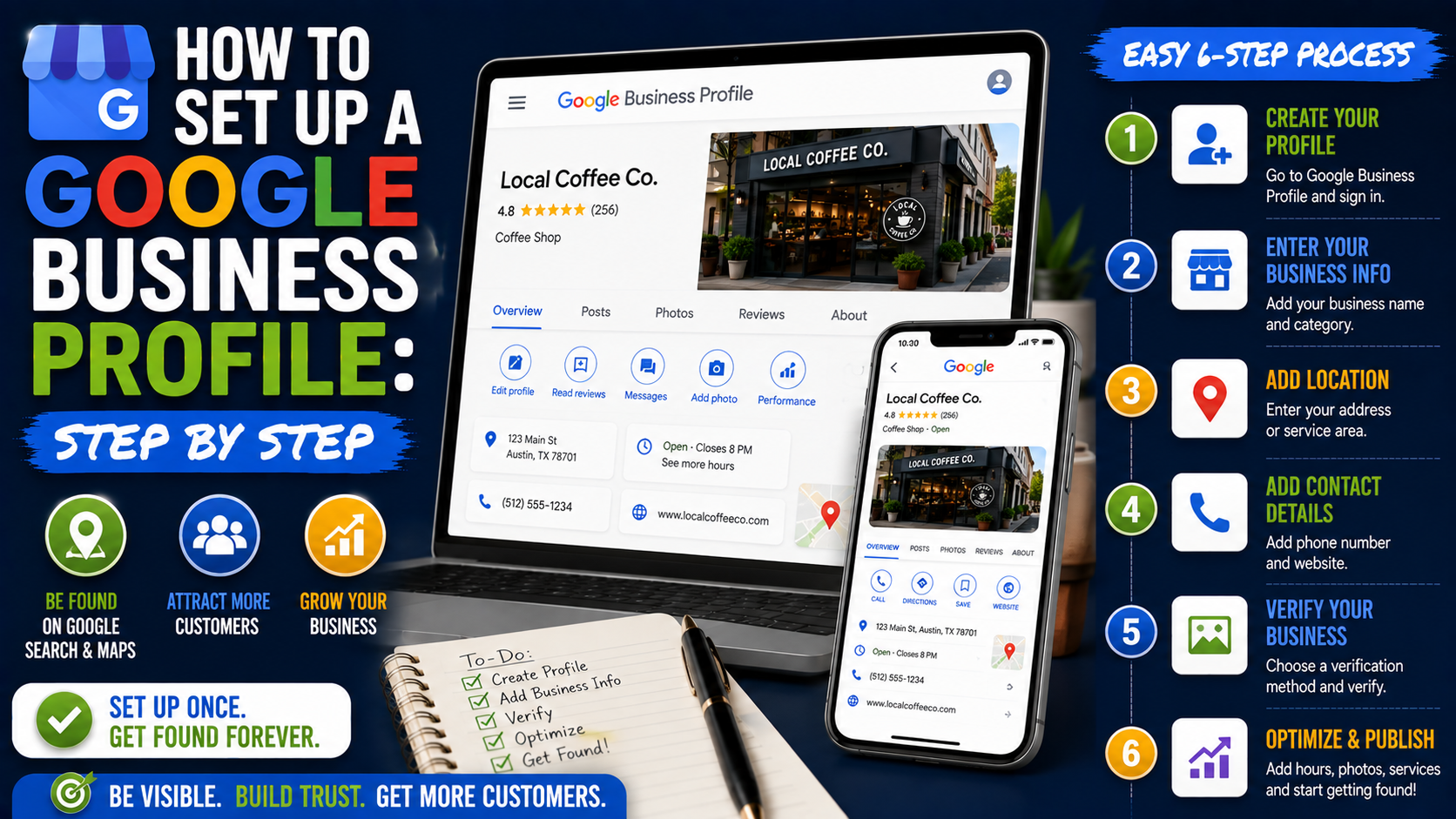
The first Google Business Profile I ever had to clean up looked fine at a glance.
The business name was there.
The phone number worked.
The company even had a few reviews.
Then I looked closer.
The address belonged to an old office.
The primary category barely matched the company’s main service.
Saturday was marked as open even though nobody answered calls on weekends.
There were two profiles for the same business.
And the person managing everything had no idea which Google account actually owned the listing.
That experience taught me something I still keep in mind whenever I set up a Google Business Profile:
Creating the profile is the easy part. Setting it up correctly is what matters.
A rushed setup can leave you fixing ownership issues, duplicate listings, incorrect addresses, or verification problems later.
A clean setup, on the other hand, gives Google a much clearer picture of the business and gives potential customers the information they actually need.
Google Business Profile is free, and eligible businesses can use it to manage how they appear on Google Search and Google Maps. Google currently lets verified businesses manage details such as their hours, website, phone number, address or service area, photos, reviews, and other profile information directly through Search and Maps.
Here is how I would set one up from scratch.
Before You Create Anything, Check Whether the Business Already Exists
This is the first step I recommend, even though people often skip it.
Do not immediately create a new profile.
Open Google Search and Google Maps and search for:
Business name + city
Try a few variations if necessary.
For example:
“Smith Roofing Dallas”
“Smith Roofing TX”
“Smith Roofing LLC”
You may discover that Google already has a listing for the business.
This happens more often than people expect.
Maybe an old employee created it.
Maybe Google generated a listing from publicly available business information.
Maybe a previous marketing agency set it up.
Maybe the owner created it years ago and forgot about it.
If an unverified profile already exists, Google lets an authorized owner or manager claim it rather than creating another one. If the profile has already been verified by someone else, you may need to request ownership.
That is much better than creating a duplicate.
Duplicate profiles can create unnecessary confusion for customers and make local SEO management harder.
Step 1: Use the Right Google Account
You need a Google Account to create and manage a Google Business Profile.
One mistake I have seen several times is somebody setting up the company listing using:
an employee’s personal Gmail account,
a freelancer’s account,
an old agency account,
or an email address nobody checks anymore.
Then two years later, nobody knows how to access the profile.
Use an account the business controls long term.
If the company has an email such as:
info@companyname.com
or
marketing@companyname.com
you can associate that email with a Google Account instead of depending entirely on somebody’s personal Gmail address.
Google specifically notes that an existing email address can be used with a Google Account and suggests linking a company email where appropriate.
My preference is simple:
The business owner or company should retain primary ownership.
Employees or agencies who need access should be added separately rather than becoming the only account with control.
That makes future handovers much easier.
Step 2: Go to the Google Business Profile Setup
If no listing exists, start the setup process through Google Business Profile.
Google’s current instructions direct businesses to its profile creation flow, where you can choose Add your business to Google and follow the on-screen instructions.
You will begin entering the basic information Google needs to understand the company.
This is where accuracy matters.
Do not think of the setup form as an SEO keyword form.
Think of it as your business identity.
Step 3: Enter the Real Business Name
This sounds straightforward, but it is one of the most abused fields in Google Maps.
Suppose your actual company name is:
Riverstone Landscaping
Do not change the profile name to:
Riverstone Landscaping | Best Landscaper & Patio Contractor Toronto
just because you want to rank for those terms.
Google says the profile name should match how the business is represented and recognized in the real world, including things such as signage, stationery, and branding.
Use the genuine business name.
If customers walk past your storefront, see your invoice, visit your website, and look at your vehicle branding, the name should make sense across all of them.
Keyword stuffing the business name might look tempting when you see competitors doing it.
That does not make it a good long-term strategy.
Step 4: Choose Your Primary Business Category Carefully
This is one of the most important decisions in the setup process.
Google asks what type of business you operate.
Do not rush through this field.
Suppose you run a company that does:
Decks
Pergolas
Patios
Outdoor kitchens
General renovations
If most of the business is deck construction, a specific category such as Deck Builder, when available and accurate, may describe the company better than an overly broad category.
Google recommends selecting the specific category that best represents the main business. You can also add additional categories later when they genuinely apply. Google currently allows one primary category plus up to nine additional categories.
The way I think about it is:
Complete the sentence:
“This business is a…”
Not:
“This business sometimes offers…”
The primary category should describe the core operation.
Secondary services can be added elsewhere.
Step 5: Decide Whether You Are a Storefront, Service-Area, or Hybrid Business
This is where a lot of home-service businesses get confused.
There are basically three common situations.
Storefront Business
Customers visit your physical location during stated business hours.
Examples:
Retail store
Dental clinic
Restaurant
Salon
Auto repair shop
If customers genuinely visit and are served there, displaying the address usually makes sense.
Service-Area Business
You travel to customers, but customers do not visit your operating address.
Examples:
Plumber
Mobile locksmith
Cleaning company
Some landscapers
Some electricians
Google says that if you do not serve customers at your business address, the address should be removed from the public profile and a service area should be used instead.
This matters for businesses operated from a home address.
If customers never come to your home, you generally should not treat the house like a public storefront simply because you want an address visible on Maps.
Hybrid Business
You serve customers at your physical location and also travel or deliver to customers.
A restaurant with dine-in service and delivery is an easy example.
Google allows eligible hybrid businesses to show their storefront address and also define a service area.
Use whichever setup accurately reflects how the business operates.
Step 6: Enter the Address Correctly
If the business has a legitimate customer-facing location, enter the complete address accurately.
Do not invent suite numbers.
Do not use an address simply because you want to rank in a more valuable city.
Do not choose a mailbox and pretend it is a staffed office.
Google’s guidelines require businesses to represent their location accurately, and the address used for verification needs to be one Google can identify appropriately.
For a real storefront, I also check the map pin.
Sometimes the text address is technically right but the marker is positioned strangely.
That can be frustrating for customers trying to drive to the location.
Step 7: Configure the Service Area if You Travel to Customers
For service-area and hybrid businesses, Google allows you to specify the areas you serve.
Currently, you can add up to 20 service areas using cities, postal codes, or other supported geographic areas. Google no longer uses an editable radius-style setup for this purpose.
For example, a contractor might select:
Plano
Frisco
McKinney
Allen
Prosper
Richardson
Do not add half the country because you would theoretically accept a huge project there.
Keep the service area realistic.
Google recommends that the overall area generally stay within roughly two hours of driving time from the business base.
More cities in the service-area field do not automatically mean better rankings everywhere.
Treat the field as customer information, not a location-ranking hack.
Step 8: Add the Correct Phone Number
Use a phone number customers can actually reach.
This sounds obvious until you find profiles connected to:
an old receptionist,
a disconnected number,
a call-tracking number nobody monitors,
or an agency-owned forwarding line.
Test it.
Call the number yourself.
If you are using call tracking for marketing analytics, make sure it is configured carefully so the business’s information remains consistent and customers can reliably reach the company.
The main question is simple:
If someone finds you on Google Maps right now and taps Call, will the right person answer?
Step 9: Add Your Website
Link to the official business website.
Usually, the homepage makes sense.
For multi-location businesses, I often prefer linking individual profiles to their relevant location pages when the website is structured that way.
For example:
Dallas location profile → Dallas landing page
Austin location profile → Austin landing page
rather than sending every location to one generic national homepage.
Make sure the page loads properly on mobile.
A huge percentage of local searches happen from phones, and sending someone from a polished Maps profile to a slow, broken, or confusing website wastes the opportunity.
Step 10: Complete Verification
You normally need to verify the Business Profile before you can fully manage it and have its information properly displayed across Google.
This part has changed over the years.
People still sometimes assume every business receives a postcard.
That is no longer something you should count on.
Google automatically determines the verification methods available for each business. Depending on the business, region, public information, and other factors, verification may involve options such as video, phone or text, email, live video, or another method offered by Google. You cannot simply choose any verification method you want if Google does not offer it.
Google also notes that some businesses may need more than one verification method.
If Google Offers Video Verification
Follow the instructions carefully.
For a real storefront, that might involve evidence such as:
the location,
signage,
access to the premises,
business equipment,
or proof that you are authorized to manage the business.
For service businesses, the evidence may look different.
Do not stage fake evidence.
Verification problems become much harder when somebody has tried to manipulate the process.
After you complete the required verification, Google says review can take up to five business days in some cases, although some profiles may be verified sooner.
Step 11: Add Accurate Business Hours
I always check this immediately after verification.
Your normal opening hours should reflect when the business is genuinely available to customers.
Do not write:
Open 24 hours
unless the business actually provides 24-hour customer service.
An HVAC company offering emergency service may legitimately be available around the clock.
A remodeling contractor whose office staff stops answering at 5 PM probably should not use 24-hour hours just because customers can submit a website form overnight.
Also remember special hours.
Christmas.
New Year.
Public holidays.
Temporary closures.
Special opening schedules.
Incorrect hours create a terrible customer experience.
Someone drives across town because Google says you are open, only to find a locked door.
That person is not thinking about SEO.
They are thinking about leaving a bad review.
Step 12: Write a Useful Business Description
Google allows businesses to add a description explaining what they do.
This is not the place to dump every keyword you found in an SEO tool.
Write for a customer.
A good description usually answers:
What does the company do?
Who does it serve?
Where does it operate?
What are the main specialties?
What is useful or distinctive about the business?
Google’s current guidance allows a business description of up to 750 characters and says it should focus on useful business information rather than promotions, sales language, URLs, or HTML.
For example, instead of:
“BEST ROOFER DALLAS CHEAP ROOF REPAIR DALLAS ROOFING NEAR ME FREE QUOTE BEST PRICE”
write something normal:
“Riverstone Roofing is a residential roofing contractor serving homeowners across the Dallas area. Our team handles roof inspections, storm-damage repairs, shingle replacement, leak repairs, and full roof installations. We focus on clear estimates, dependable scheduling, and practical recommendations based on the condition of each roof.”
Much easier to trust.
Step 13: Add Your Real Services
If Google makes the Services section available for your business category, use it.
Google lets eligible businesses choose suggested services and, in many cases, create custom services. Services can also include supporting information such as descriptions and prices where appropriate.
Suppose you are a plumber.
Your list might include:
Drain cleaning
Water heater installation
Water heater repair
Faucet repair
Toilet repair
Pipe leak repair
Sewer line inspection
Emergency plumbing
Do not create ten variations of the same service just to repeat keywords.
Add what customers can genuinely hire you for.
A profile should function like a useful mini version of your business, not a keyword spreadsheet.
Step 14: Add a Logo and Cover Photo
A profile without real visual assets often looks unfinished.
Start with:
Logo
Cover image
Exterior photo if customers visit the location
Interior photos
Team photos
Products
Services
Completed work
Google says profile photos and videos become visible after verification and recommends images that are clear, well lit, and representative of reality rather than heavily altered. Its current recommended photo resolution is 720 × 720 pixels, with a minimum of 250 × 250 pixels.
Do not get too obsessed with the exact dimensions, though.
The bigger issue is authenticity.
For a contractor, I would rather see a well-shot photo from an iPhone showing an actual finished patio than a polished stock image downloaded from a photo library.
People want to see the real company.
Step 15: Upload Useful Business Photos
Once the profile is live, keep adding genuine media.
For a landscaping company:
Before-and-after projects
Patios
Retaining walls
Driveways
Planting work
Crew photos
Equipment
For a restaurant:
Menu items
Interior
Exterior
Seating areas
Real dishes
For an attorney:
Office
Team
Reception
Building exterior
Professional branding
For a mechanic:
Workshop
Team
Service bays
Completed repairs where appropriate
Google specifically says category-relevant photos can help potential customers understand what the business offers and can make the profile stand out.
You do not need to upload 100 photos on day one.
Start with a solid set of genuine images and continue adding worthwhile material.
Step 16: Review Your Attributes and Category-Specific Features
Different businesses get different profile options.
A restaurant may have menu-related features.
A hotel receives accommodation-related fields.
A salon may have booking options.
Some businesses can add accessibility information, appointment links, amenities, or other attributes.
Go through the profile editor and complete whatever accurately applies to the business.
Do not check boxes simply because they make the profile look more complete.
Accuracy matters more than completion for its own sake.
Step 17: Check How the Profile Looks to a Customer
This step is surprisingly useful.
Business owners spend so much time looking at the management interface that they forget to inspect the customer experience.
Search the business in Google Maps.
Look at:
Business name
Category
Star rating
Photos
Hours
Phone number
Website
Address
Directions
Services
Description
Then ask:
Would I trust this profile if I knew nothing about the company?
Google suggests checking how the profile appears publicly, including by viewing it outside the management context.
I also check it from a phone because mobile presentation matters a lot for local searches.
Step 18: Start Building Genuine Reviews
Once the basics are correct, establish a review process.
Do not wait until the company desperately needs reviews.
Ask satisfied customers naturally after completed work.
You can use:
SMS
A CRM
A QR code
An invoice follow-up
A direct review link
Tools such as Jobber, Housecall Pro, Podium, Birdeye, NiceJob, or other customer-management platforms can automate parts of the process, although a paid review platform is not required.
A simple message can work:
“Thanks again for choosing us. If you have a moment, we’d appreciate an honest Google review about your experience.”
Do not buy reviews.
Do not create fake customer accounts.
Do not make compensation conditional on leaving a positive review.
Build the profile on real customer feedback.
Step 19: Respond to Reviews
Positive or negative, respond like a human.
Positive review:
“Thanks, Sarah. We’re glad you’re happy with the new patio. We appreciate you trusting our team with the project.”
Negative review:
“Thanks for sharing this. We’re sorry the scheduling communication fell short. We’ve reviewed the issue with the team and would like to speak with you directly so we can understand what happened and work toward a resolution.”
Do not copy the same generic paragraph under every review.
And definitely do not turn a one-star review into a public argument.
Future customers read owner responses too.
Step 20: Keep the Profile Updated
Setting up the Business Profile is not the last step.
Businesses change.
Phone numbers change.
Employees leave.
Opening hours change.
Services get added.
Locations move.
Websites get rebuilt.
Google says keeping business information complete, accurate, and up to date can improve how appropriately the business appears for local searches. Changes can also take time to appear after editing.
I like doing a quick profile check at least periodically.
You do not need to spend hours every week staring at Google Maps.
Just make sure the information still matches reality.
Common Mistake: Creating a Second Profile Because You Lost Access
If your business already has a verified profile and you cannot access it, do not automatically create another one.
Try to recover or request ownership of the existing profile.
Google provides an ownership-request process when an eligible person needs access to a profile managed by someone else.
One legitimate business location usually needs one legitimate profile.
Common Mistake: Using a Fake Address
I understand why businesses try this.
A contractor works from home outside the main city.
The owner wants to rank downtown.
Someone suggests renting a mailbox or virtual office and creating another profile.
The potential short-term gain is not worth building your visibility on inaccurate information.
Use a real eligible location or set up the business properly as a service-area business.
Common Mistake: Choosing Categories Like Keywords
A business that offers:
Roof repair
Gutter cleaning
Skylight work
Chimney repair
does not automatically need a separate category for every task.
Categories describe what the business is.
Services describe what the business offers.
Keep those two ideas separate.
Common Mistake: Hiding the Real Address for a Storefront
The opposite mistake also happens.
A genuine retail shop receives customers all day but configures itself entirely as a service-area business.
If customers visit the location, configure the profile accordingly.
Your setup should reflect how the company actually interacts with customers.
Common Mistake: Showing a Home Address Customers Cannot Visit
If you operate a plumbing company from home but all work happens at customer properties, there is usually no reason for strangers to be directed to your front door.
Google’s service-area setup exists for exactly this situation.
Common Mistake: Ignoring Verification Preparation
If Google asks for evidence during verification, the business should look like a real business.
That may sound obvious.
But problems happen when:
The website uses a different business name.
There is no permanent signage where one should exist.
The phone number is disconnected.
The address is inconsistent.
The business category does not match the operation.
The person verifying cannot show legitimate access or business activity.
Set up your business information properly before treating verification like a final technical checkbox.
Common Mistake: Believing the Profile Alone Guarantees Rankings
A complete Google Business Profile does not guarantee position one in Google Maps.
Google says local results are primarily influenced by relevance, distance, and prominence. Complete and accurate business information can help Google better understand and match a business, but competition, location, reputation, links, reviews, and other signals still matter.
So after the profile is set up, local SEO may still involve:
Review growth
Website optimization
Service pages
Local landing pages
Local links
Business citations
Content
Reputation management
Technical SEO
Competitor analysis
A clean GBP is the foundation, not the entire house.
A Simple Google Business Profile Setup Checklist
Before I consider a new profile properly set up, I normally want to see:
Correct Google account ownership
No unnecessary duplicate listing
Real-world business name
Accurate primary category
Relevant additional categories
Correct storefront or service-area setup
Accurate address where applicable
Accurate service areas
Working phone number
Correct website
Successful verification
Correct regular hours
Special hours when required
Useful business description
Real services
Logo
Cover photo
Real business photos
Relevant attributes
Review process
Review responses
A final customer-view check on Search and Maps
If those pieces are right, you have a much stronger starting point than the businesses that simply created a listing, entered a phone number, and forgot about it.
Final Thoughts
Google Business Profile setup is not complicated because there are hundreds of technical steps.
It is complicated because every field needs to reflect the real business accurately.
That is what I would focus on.
Use the real business name.
Choose the right category.
Be honest about whether customers visit your address.
Set realistic service areas.
Use a phone number that gets answered.
Link the correct website.
Prepare properly for verification.
Add real services and real photos.
Then keep everything updated as the business changes.
Google Business Profile is free, but that does not make it unimportant.
For many local businesses, it is one of the first things a customer sees before they ever visit the website.
Someone may discover you on Google Maps, look at your photos, read three reviews, check whether you are open, and call you without knowing anything else about the company.
That is why I would treat the setup like a customer-facing asset, not a form you need to complete once.
If the profile makes it easy for Google to understand the business and easy for a potential customer to trust it, you have done the important part right.