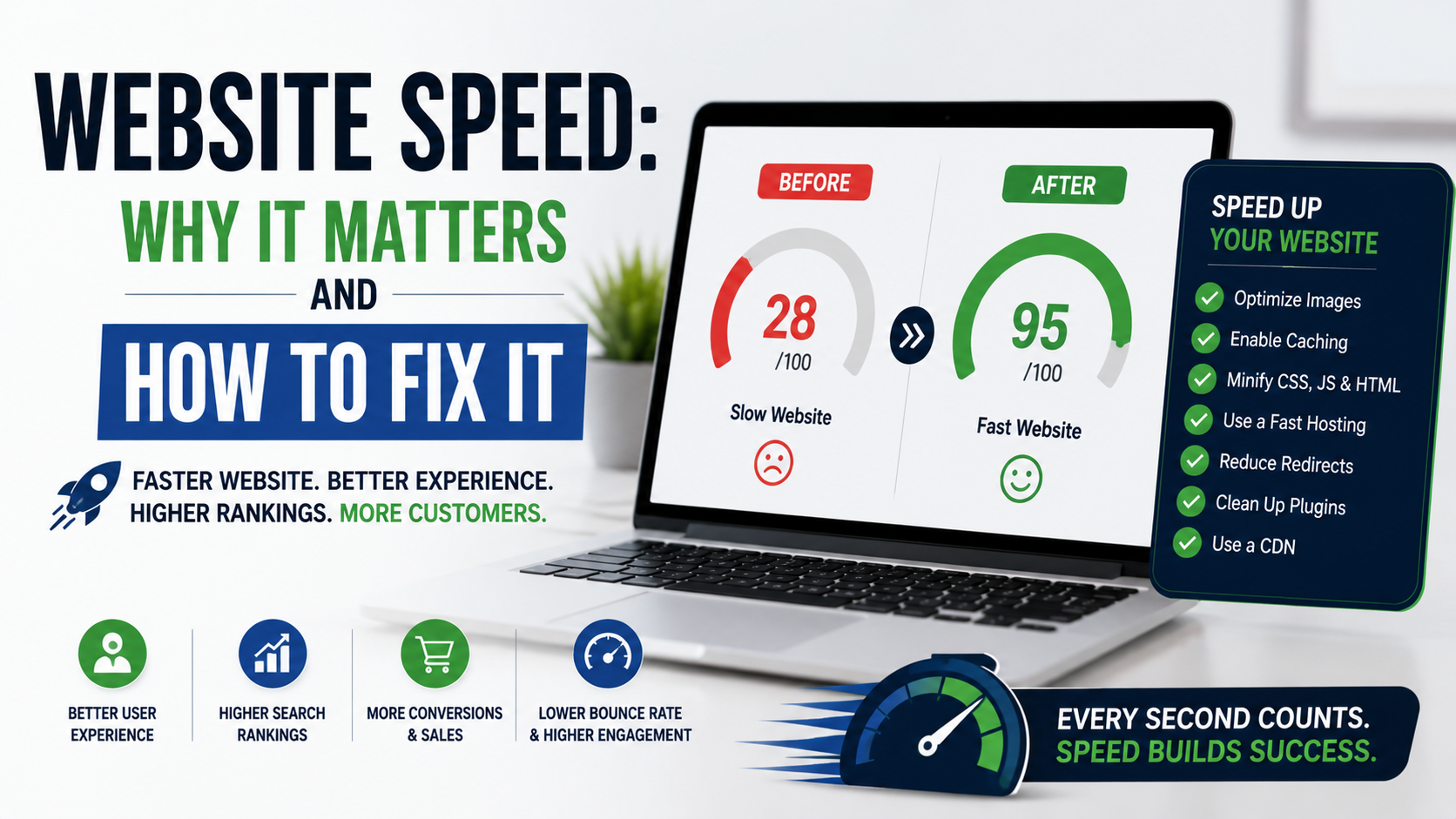
A slow website usually does not announce itself with an error message.
It works.
Eventually.
You click a service page and wait.
The logo appears.
Then the headline.
Then a huge image suddenly pushes everything downward.
You try to tap the menu, but nothing happens for a moment.
By the time the page finally feels usable, you are already wondering whether going back to Google would be easier.
That is what makes website speed such a frustrating problem.
A business owner may look at the site on office Wi-Fi and think:
“It loads fine for me.”
But the customer might be opening the same page on an older phone, over a weaker mobile connection, with several scripts competing for resources.
That experience can be completely different.
When troubleshooting slow websites, I have found that the biggest problems are rarely mysterious. They usually come from familiar things: oversized images, heavy themes, too much JavaScript, slow hosting, third-party tracking scripts, autoplay video, poorly configured caching, or years of plugins nobody wants to remove.
The good news is that you usually do not need to rebuild the entire site.
You need to measure the problem properly, identify what is actually slowing the page down, and fix the highest-impact issues first.
Website Speed Is Really About How Fast the Site Feels
People often reduce website speed to one number.
“Page loads in 2.8 seconds.”
Or:
“PageSpeed score is 91.”
Those numbers can be useful, but they do not tell the whole story.
A page may start displaying quickly but take several more seconds before buttons respond normally.
Another page may technically finish loading slowly while the important content becomes usable almost immediately.
That is why modern performance measurement looks at several parts of the experience.
Google’s current Core Web Vitals focus on loading performance, responsiveness, and visual stability through three main metrics: Largest Contentful Paint (LCP), Interaction to Next Paint (INP), and Cumulative Layout Shift (CLS). Google currently recommends aiming for LCP within 2.5 seconds, INP below 200 milliseconds, and CLS below 0.1 at the 75th percentile of real-user visits.
Those names sound technical.
The ideas behind them are simple.
LCP: How Quickly Does the Main Content Appear?
Largest Contentful Paint usually represents the moment when the largest important visible element finishes appearing.
That might be:
A hero image.
A large headline.
A banner.
A large content block.
If a visitor opens your roofing website and spends several seconds looking at a mostly blank screen while the hero photo loads, LCP will probably suffer.
A common mistake is assuming LCP problems are always image problems.
Sometimes they are.
But the delay can also begin earlier because the server responds slowly, important CSS blocks rendering, or the browser does not discover the main image soon enough.
This is why performance work should be diagnostic rather than:
“Compress every image and hope.”
INP: How Quickly Does the Website Respond?
Interaction to Next Paint measures responsiveness.
Think about the frustration of tapping:
Menu.
Add to Cart.
Book Appointment.
Open Calculator.
Filter Products.
and nothing appears to happen immediately.
You tap again.
Now two things happen.
That is a responsiveness problem.
Large amounts of JavaScript are a common cause.
The browser may be busy processing other work when the user tries to interact.
Modern websites can become especially vulnerable because so many tools add scripts:
Analytics.
Advertising pixels.
Chat widgets.
Heatmaps.
Cookie platforms.
A/B testing.
Animations.
CRM forms.
Popups.
Social embeds.
Each tool may seem small individually.
Together they can make a page feel heavy.
CLS: Why Does Everything Keep Moving?
Cumulative Layout Shift measures unexpected movement on the page.
You have probably experienced this.
You are about to click a button.
An advertisement, image, cookie banner, or font loads.
Everything shifts.
You click something else by accident.
That is poor visual stability.
Common causes include:
Images without defined dimensions.
Ads loading into empty spaces.
Web fonts replacing fallback fonts.
Dynamic banners.
Late-loading embedded content.
Poorly implemented animations.
This is not simply a technical score.
It is an actual usability problem.
Use PageSpeed Insights, but Understand What You Are Looking At
Google PageSpeed Insights is usually the first tool I use when investigating a slow page.
You enter a URL and receive separate mobile and desktop information.
PageSpeed Insights combines two useful perspectives.
First, it can show real-world field data from the Chrome User Experience Report when enough data exists.
Second, it uses Lighthouse to run a controlled lab test and identify possible performance problems. Google describes PSI as using both real-world and lab data, with field metrics based on a trailing 28-day window.
That distinction matters.
The lab test tells you:
“What happened during this particular simulated test?”
Field data tells you:
“What have real Chrome users actually experienced?”
I generally care more about real-user experience when enough field data exists.
But lab data is extremely useful for diagnosing what to fix.
Do Not Obsess Over Getting 100
This is one of the biggest website-speed mistakes.
Someone runs PageSpeed Insights.
The mobile score says 86.
They decide the website is broken.
Then they spend three days trying to reach 100.
Google itself warns against treating a perfect score as the goal. Its Search documentation says good Core Web Vitals can contribute to page experience, but good scores do not guarantee top rankings, and trying to achieve perfect scores purely for SEO may not be the best use of time.
That is exactly how I would approach it.
If your website:
Loads quickly.
Responds immediately.
Does not jump around.
Works well on mobile.
Converts visitors.
and scores 92 rather than 100, I would not panic.
Focus on real friction.
Website Speed Matters for Conversion
Imagine two companies running the same Google Ads campaign.
Both pay for a click.
Visitor A reaches Company A’s landing page.
The headline appears quickly.
The quote button works.
The form opens smoothly.
Visitor B reaches Company B’s page.
The hero video is loading.
The chat widget appears.
Then a cookie popup.
Then the page shifts.
The button does not respond immediately.
Company B already paid for that visitor.
The performance problem is now a conversion problem.
This is why I think website speed matters most when you connect it to business outcomes.
A slow site can affect:
Quote requests.
Phone calls.
Bookings.
Purchases.
Lead forms.
Product views.
Checkout completion.
Ad efficiency.
Do not optimize speed only because a tool gives you a red number.
Optimize it because customers should not have to fight your website.
Website Speed Can Matter for Search Too
Google recommends good Core Web Vitals as part of providing a strong page experience, and its current documentation confirms that Core Web Vitals are used by its ranking systems. At the same time, Google is very clear that relevance and helpful content still matter enormously and that excellent performance scores alone do not guarantee rankings.
That is an important distinction.
A fast, useless page does not deserve to outrank a slower page that answers the search much better.
But if two pages are both useful, providing a better experience certainly does not hurt.
Think of performance as one part of a good site.
Not an SEO shortcut.
Start With the Pages That Matter Most
You do not need to optimize every forgotten page first.
Start with pages that affect customers and revenue.
For example:
Homepage.
Main service pages.
Paid landing pages.
Product pages.
Checkout.
Contact page.
Booking page.
High-traffic blog posts.
Use Google Search Console, GA4, or your analytics system to identify where traffic actually goes.
If one landing page receives 40% of your ad traffic, fix that before optimizing a 2019 blog post that gets six visits per month.
Fix #1: Compress Your Images
Large images are one of the most common performance problems.
A photographer uploads:
7 MB photo.
Website displays it at 800 pixels wide.
The browser still has to download the giant original file unless the site creates and serves an appropriate version.
Multiply that by ten images and the page becomes unnecessarily heavy.
Before uploading images, resize them to sensible dimensions.
A thumbnail does not need to be 6,000 pixels wide.
Use Modern Image Formats
Formats such as WebP and AVIF can often produce much smaller images while keeping strong visual quality.
You do not need to convert every file manually if your CMS, image CDN, optimization plugin, or hosting platform can handle delivery automatically.
WordPress users may use image optimization tools or hosting-level optimization.
Other platforms such as Shopify, Webflow, Wix, Squarespace, or modern hosting/CDN systems may perform some image processing automatically.
The exact tool matters less than the result:
Do not make visitors download more image data than they need.
Do Not Destroy Image Quality
I have seen speed optimization taken too far.
A site loads quickly.
Every portfolio photo looks terrible.
That is not a victory if you are an architect, photographer, contractor, or interior designer.
The goal is the smallest reasonable file with acceptable visual quality.
Test images on actual devices.
Compression should be efficient, not obvious.
Fix #2: Lazy Load Below-the-Fold Images
Lazy loading means delaying certain images until they are actually needed.
Imagine a project gallery with 40 photos.
There is no reason the browser must immediately download all 40 before the visitor even scrolls.
Lazy loading can reduce the initial workload.
But do not blindly lazy-load the main hero image.
If the hero image is your LCP element, delaying it can make performance worse.
Above-the-fold important content should be prioritized.
Below-the-fold assets are better lazy-loading candidates.
Fix #3: Be Careful With Hero Videos
Full-screen background videos look impressive in design presentations.
They can also be very expensive.
A homepage may begin with:
Large MP4 video.
Desktop version.
Mobile version.
Overlay animation.
JavaScript controls.
Several fonts.
Then someone wonders why mobile performance is weak.
Ask whether the video genuinely improves the experience.
If it does, optimize it.
Use:
Short duration.
Efficient compression.
No unnecessary audio.
Appropriate resolution.
Poster image.
Mobile fallback where needed.
If the video exists purely because:
“It looks premium,”
test a high-quality static image instead.
You may be surprised how little the visitor misses it.
Fix #4: Improve Server Response Time
Sometimes the front end gets blamed for a hosting problem.
You can optimize images all day, but if the server takes too long to begin responding, the website will still feel slow.
Possible causes include:
Cheap overloaded shared hosting.
Poor database performance.
Slow application code.
No page caching.
Too many server-side plugins.
External API calls.
Insufficient resources.
If a site has grown significantly since it was launched, the original hosting plan may simply no longer be appropriate.
Cheap Hosting Can Become Expensive
Saving $10 or $20 per month on hosting sounds sensible.
Until:
Landing pages become slow.
Checkout struggles.
Admin becomes painful.
Traffic spikes cause errors.
Developers waste hours troubleshooting limitations.
You do not automatically need expensive enterprise hosting.
But match hosting quality to the importance of the site.
A website generating $100,000 per month in leads should not depend on the cheapest server you could find.
Fix #5: Use Caching Properly
Caching allows previously generated or downloaded resources to be reused rather than recreated every time.
There are several kinds of caching.
Browser caching can help visitors reuse static assets.
Page caching can serve prebuilt page output instead of rebuilding it repeatedly.
CDN caching can move content closer to visitors.
For WordPress, popular caching solutions include plugins and hosting-level systems.
The specific setup depends heavily on your stack.
A badly configured cache can cause problems too, so test changes carefully.
Fix #6: Use a CDN When It Makes Sense
A Content Delivery Network stores or delivers site resources across distributed locations.
Instead of every visitor retrieving everything from one distant server, a CDN may serve assets from infrastructure closer to them.
Services such as Cloudflare are common examples.
CDNs can also provide:
Caching.
Security.
Image optimization.
Traffic filtering.
But installing a CDN does not automatically fix a slow application.
If your backend takes four seconds to build every page, putting Cloudflare in front of it is not a complete solution.
Fix the underlying problem too.
Fix #7: Remove Plugins You Do Not Need
This is particularly common with WordPress.
A site starts with:
10 plugins.
Three years later:
42 plugins.
Some are inactive.
Some duplicate each other.
Nobody knows what six of them do.
A plugin count alone does not determine speed.
One badly written plugin can cause more trouble than ten lightweight ones.
But unnecessary plugins increase:
Code.
Database activity.
Maintenance.
Security exposure.
Compatibility issues.
Potential scripts.
Audit them.
Ask:
Do we still use this?
Does another tool already provide the same feature?
Is it loading assets on pages where it is not needed?
Delete what serves no purpose.
Fix #8: Reduce Third-Party Scripts
This is one of the hardest performance problems because every department wants something installed.
Marketing wants:
Meta Pixel.
Google Ads.
LinkedIn Insight Tag.
Heatmaps.
Chat.
A/B testing.
Call tracking.
Analytics.
Sales wants:
CRM forms.
Scheduling.
Chatbot.
Product wants:
User behavior tools.
Then the developer is asked:
“Why is the site slow?”
Third-party scripts need a business case too.
Audit every script.
Ask:
Who uses this data?
What decision does it support?
Does it need to load immediately?
Can it load after interaction or consent?
Can we remove it?
A website should not carry permanent performance costs for tools nobody checks.
Fix #9: Use Google Tag Manager Carefully
Google Tag Manager can help organize tracking.
It can also become a storage room where nobody throws anything away.
You may find:
Old Facebook pixel.
New Meta pixel.
Two GA4 tags.
Legacy analytics.
Three conversion scripts.
Old remarketing tags.
Tags from campaigns that ended two years ago.
Clean the container.
Test what actually fires.
Do not assume Tag Manager makes tracking free from a performance perspective.
The external scripts still need resources.
Fix #10: Optimize JavaScript
JavaScript is essential for many modern experiences.
The problem is unnecessary JavaScript.
Large bundles can delay:
Rendering.
Interaction.
Button responsiveness.
Navigation.
Developers can improve this through techniques such as:
Code splitting.
Removing unused dependencies.
Deferring noncritical scripts.
Loading features only where needed.
Breaking up long tasks.
Reducing heavy client-side rendering where appropriate.
The exact solution depends on your framework.
A Next.js application will be optimized differently from a WordPress Elementor site.
But the question remains the same:
How much work are we forcing the user’s browser to perform before they can use the page?
Fix #11: Reduce CSS Bloat
CSS can become bloated too.
Page builders and themes may load large stylesheets containing rules the current page barely uses.
You can improve this by:
Removing unused styles.
Minifying CSS.
Loading critical styles efficiently.
Avoiding unnecessary frameworks.
Reducing duplicate theme/plugin styles.
But be careful with automated “remove unused CSS” features.
They can occasionally break:
Menus.
Popups.
Dynamic components.
Responsive elements.
Always test important pages after optimization.
Fix #12: Optimize Fonts
Fonts are often overlooked.
A website may load:
Six font families.
Four weights each.
Italic versions.
Icon fonts.
Third-party font scripts.
All for a design that really uses two weights.
Simplify.
Use only the fonts and weights you need.
Consider hosting fonts efficiently.
Preload genuinely critical font files where appropriate.
Use sensible fallback fonts.
Poor font loading can also contribute to layout shifts.
Typography should support the design, not become a performance project of its own.
Fix #13: Define Image and Video Dimensions
This is one of the easiest ways to improve visual stability.
When the browser knows an image’s dimensions before it loads, it can reserve the correct space.
Without dimensions:
Text loads.
Image arrives.
Text jumps downward.
The visitor loses their place.
The same issue can happen with:
Videos.
Ads.
Embeds.
Widgets.
Reserve space whenever possible.
Your CLS score and your visitors will both appreciate it.
Fix #14: Be Careful With Popups and Chat Widgets
A slow chat widget can affect every visitor even if only 2% use it.
The same applies to:
Popup software.
Review widgets.
Social feeds.
Booking tools.
Third-party calculators.
Before installing another widget, ask whether you can achieve the same result more efficiently.
For example, instead of embedding a heavy Instagram feed on the homepage, you may simply show a few optimized project images and link to Instagram.
Often the simpler version is also easier to design.
Fix #15: Clean the Database
Dynamic websites can accumulate years of unnecessary database content.
On WordPress, that may include:
Post revisions.
Expired transients.
Spam comments.
Old plugin tables.
Unused metadata.
Logs.
Cleaning can help in certain situations, particularly on large or poorly maintained sites.
But back up first.
Database optimization is not something I would perform recklessly just because a plugin offers a big:
“OPTIMIZE NOW”
button.
Know what is being removed.
Fix #16: Keep WordPress Updated
Outdated software can create:
Performance problems.
Security risks.
Plugin conflicts.
Compatibility issues.
Keep:
WordPress core.
Themes.
Plugins.
PHP.
appropriately updated.
But do not update a critical production website blindly.
Use backups.
Staging environments.
Testing.
A fast broken site is still broken.
Fix #17: Choose Themes and Builders Carefully
Heavy website builders can make simple pages surprisingly complicated.
A basic heading and button may generate layers of:
Divs.
CSS.
JavaScript.
Animations.
Responsive logic.
That does not mean:
“Never use page builders.”
Tools such as Elementor can be very practical, especially for teams that need easy editing.
But use them intentionally.
Avoid stacking:
Heavy theme.
Heavy builder.
Several builder add-ons.
Animation plugin.
Popup plugin.
Slider plugin.
All for a five-page brochure website.
Sometimes simpler architecture is the best optimization.
Fix #18: Remove Sliders Nobody Uses
Homepage sliders have survived longer than I expected.
They often include:
Three giant images.
Multiple headlines.
JavaScript animation.
Navigation controls.
Autoplay.
Visitors may only see the first slide anyway.
Ask whether one strong hero message would work better.
Simpler is often:
Faster.
Clearer.
Easier to maintain.
Better for conversion.
That is a nice combination.
Fix #19: Optimize Ecommerce Carefully
Ecommerce performance can be more complicated because stores require dynamic functionality.
You have:
Cart.
Checkout.
Search.
Filters.
Reviews.
Recommendations.
Tracking.
Inventory.
Payments.
Do not blindly cache everything.
Cart and account pages may require different handling from static content.
Platforms such as Shopify handle much of the infrastructure for you, but apps can still add substantial front-end weight.
Audit apps just like WordPress plugins.
If a Shopify app is costing performance on every product page but nobody uses the feature, remove it.
Fix #20: Do Not Load Features Everywhere
Suppose you have a map only on your Contact page.
Why load the map script on the homepage?
Suppose a booking calendar is only needed on one service page.
Why load it site-wide?
Conditional loading can dramatically reduce unnecessary resources.
This requires more technical work, but it is a useful principle:
Load a feature where it is needed.
Not everywhere because implementation was easier.
Check Mobile First
Desktop results can create false confidence.
Your office laptop has:
Fast CPU.
Fast Wi-Fi.
Plenty of memory.
Your customer may have:
Older Android phone.
4G connection.
Power-saving mode.
Several apps running.
That is a very different environment.
Google’s PageSpeed Insights provides separate mobile and desktop analysis for exactly this reason.
When I investigate performance, mobile usually deserves more attention.
Especially for:
Local businesses.
Restaurants.
Contractors.
Retail.
Healthcare.
Emergency services.
Paid social traffic.
Test on Real Devices Too
Performance tools are useful.
So is your thumb.
Open the website on a phone.
Try:
Menu.
Service page.
Form.
Gallery.
Checkout.
Booking.
Search.
Ask:
Does it feel instant?
Do buttons hesitate?
Does anything jump?
Can I scroll smoothly?
Does the keyboard break the form?
Does a popup cover half the page?
Tools diagnose.
Real interaction validates.
Use both.
Search Console Can Help Monitor Core Web Vitals
Google Search Console includes a Core Web Vitals report that groups pages based on real-user performance data when enough information is available. Google specifically recommends using this report alongside other Web Vitals measurement tools.
This is useful because one PageSpeed test is just a snapshot.
You want to know whether:
Real performance improves.
Problems affect many URLs.
Templates share the same issue.
Mobile users are struggling.
Monitor after changes.
Do not assume the optimization worked just because a caching plugin displayed:
“Success!”
Lab Data and Field Data May Disagree
This confuses people all the time.
PageSpeed lab test:
Great.
Core Web Vitals field data:
Still poor.
Or the reverse.
That does not automatically mean something is broken.
Field data represents real users across different devices, connections, and conditions over time.
PageSpeed Insights notes that its field data comes from CrUX and represents a trailing 28-day period, while Lighthouse provides simulated lab diagnostics.
So improvements may not appear instantly in field data.
And your one test may not represent every visitor.
Use both perspectives.
Common Website Speed Mistakes
Installing Five Optimization Plugins
More optimization plugins can create conflicts instead of speed.
Compressing Images Until They Look Bad
Performance should not ruin the product.
Chasing a Score Instead of User Experience
A 100 does not pay the bills.
Ignoring Mobile
Fast desktop does not guarantee fast mobile.
Blaming Hosting for Everything
Sometimes the site itself is inefficient.
Blaming Plugins for Everything
Sometimes one custom script is the real issue.
Removing Scripts Without Checking Tracking
You can accidentally break conversion measurement.
Caching Dynamic Pages Incorrectly
This can create serious ecommerce and account problems.
Making Every Script “Defer”
Automated settings can break page functionality.
Never Testing After Optimization
Every performance change should be validated.
A Practical Website Speed Audit
If I had to improve a slow business website today, I would do it in this order.
Step 1: Pick Important Pages
Homepage.
Top landing pages.
Main service pages.
Checkout or contact flow.
Step 2: Run PageSpeed Insights
Check both mobile and desktop.
Step 3: Look at Core Web Vitals
Identify whether the biggest problem is:
Loading.
Responsiveness.
Layout stability.
Step 4: Check Real User Data
Use PageSpeed field data and Search Console where available.
Step 5: Inspect Images
Look for oversized files.
Step 6: Check Hosting and Server Response
Make sure the problem is not beginning before the browser receives useful content.
Step 7: Audit Scripts
Remove old or unnecessary marketing and widget code.
Step 8: Audit Plugins and Apps
Keep what earns its place.
Step 9: Check Caching
Confirm it is configured properly.
Step 10: Review Fonts and Videos
Reduce unnecessary weight.
Step 11: Test Mobile Manually
Use the actual website.
Step 12: Make One Group of Changes
Do not break ten things at once.
Step 13: Retest
Compare results.
Step 14: Watch Conversions
Did lead or sales behavior improve?
Step 15: Monitor Over Time
Performance is maintenance, not a one-time project.
Fix the Biggest Problem First
This sounds obvious, but it saves enormous amounts of time.
Suppose PageSpeed reports:
Hero image: 4.5 MB.
Twenty unused JavaScript files.
Font saving opportunity: 30 KB.
Start with the 4.5 MB image.
Do not spend two hours saving 30 KB while ignoring the giant obvious bottleneck.
Performance work should be prioritized by impact.
Speed Optimization Can Improve More Than Speed
This is one of the reasons I like performance projects.
Removing unnecessary weight often improves other parts of the site too.
Fewer plugins can mean:
Fewer compatibility problems.
Better security.
Easier maintenance.
Simpler development.
Removing giant visual effects can create:
Clearer messaging.
Better mobile layouts.
Stronger CTAs.
Simplifying forms can improve:
Responsiveness.
Conversion.
Usability.
Good performance work often pushes a website toward better design decisions.
Do Not Turn Optimization Into Fear
A red performance score can make people panic.
Then someone sells them a complete rebuild because:
“Google will stop ranking your site.”
That is not how I would approach it.
Google recommends strong Core Web Vitals and confirms they are part of its broader ranking systems, but it also explicitly says page experience is only one part of search success and that relevant, useful content can still rank even when page experience is not perfect.
Fix real performance problems.
Do not buy fear.
What a Fast Website Should Feel Like
A good website should feel uneventful.
You click.
It appears.
You scroll.
Nothing jumps.
You tap.
It responds.
You submit.
The confirmation appears.
That is it.
Visitors should not notice how much technical work went into making the experience fast.
They should simply not experience friction.
That is the real goal.
Not a green circle.
Not a screenshot of a 100 score.
Not an optimization plugin telling you everything is perfect.
A customer who wants a quote should be able to get one without waiting for a cinematic hero video, six tracking platforms, three font families, an Instagram feed, and an abandoned chatbot to finish loading first.
Start with what the customer actually needs.
Measure the pages that matter.
Fix the largest bottlenecks.
Compress heavy assets.
Reduce unnecessary code.
Use caching correctly.
Choose suitable hosting.
Watch your real-user metrics.
Then stop when further optimization stops producing meaningful value.
Website speed is important precisely because visitors should not have to think about it.
When the site is fast, the technology disappears and the business gets the attention instead.